A campaign groups one or more donation forms under a single goal, with its own public page, progress bar and donor list. Use campaigns for appeals, fundraisers and crowdfunding rounds.
Opening the Campaigns List
Go to SmartPay → Campaigns.
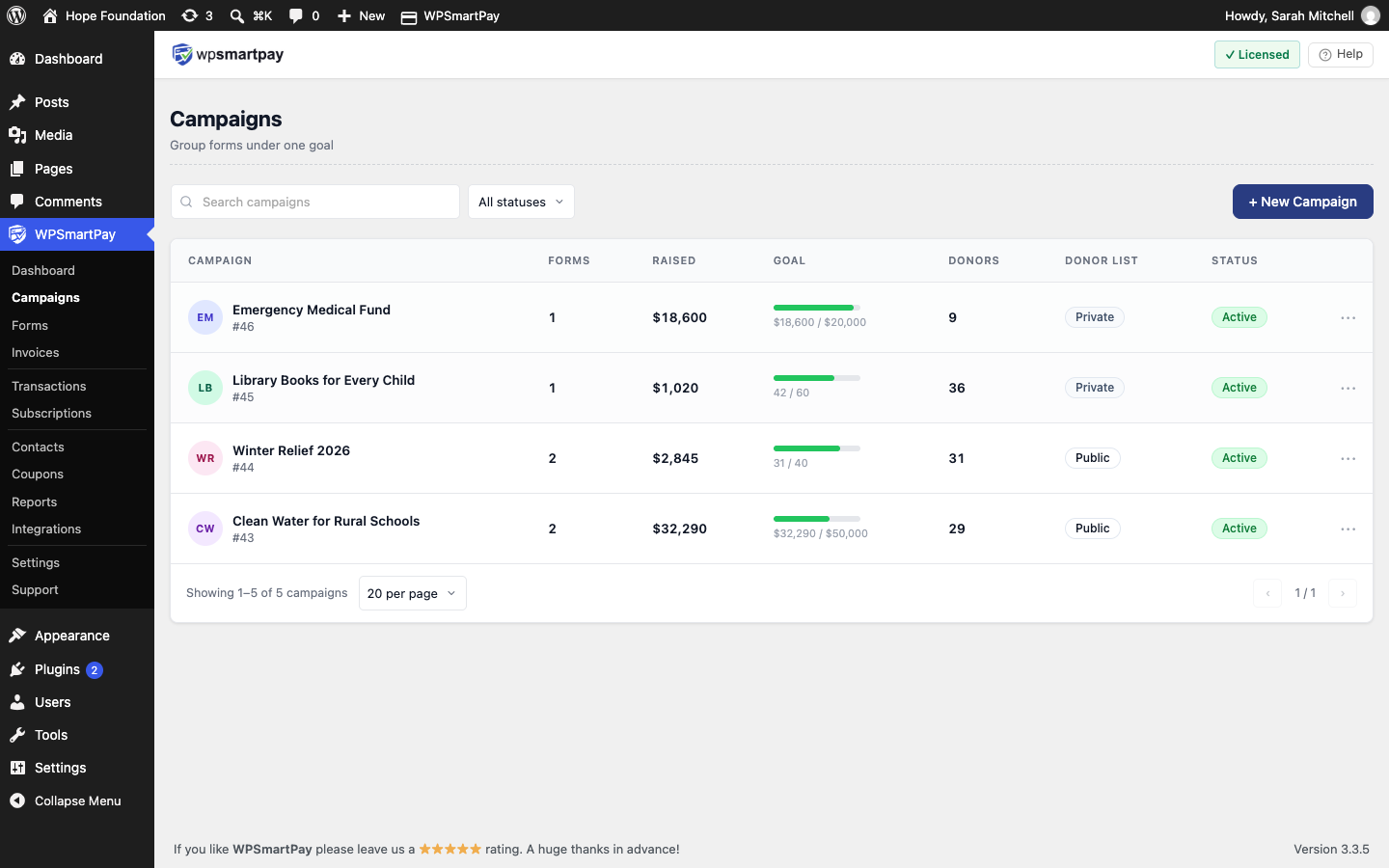
Column Overview
Campaign — Title and ID.
Forms — Number of attached forms.
Raised — Total from completed gifts, including recurring renewals.
Goal — Progress bar with current / target.
Donors — Unique donors.
Donor list (Pro) — Public or Private.
Status — Active, or Ended once the end date has passed.
Search by title, or filter by Active / Ended. Row actions: Open, View page, Delete.
Note: Deleting a campaign keeps its forms. They become unassigned and go back to their own goal.
Creating a Campaign
Click + New Campaign.
Fill in:
Title — Required.
Short description — Shown under the title on the campaign page.
Cover image — 1600×600 recommended.
Goal type — Amount raised, Number of donations or Number of donors.
Goal target — Leave empty for no goal.
End date — Optional.
Click Create campaign. You land on the campaign's Forms tab.
Attaching Forms
On the Forms tab:
+ Add form — Opens a new form that is already assigned to this campaign.
Attach existing — Pick from forms that are not in any campaign.
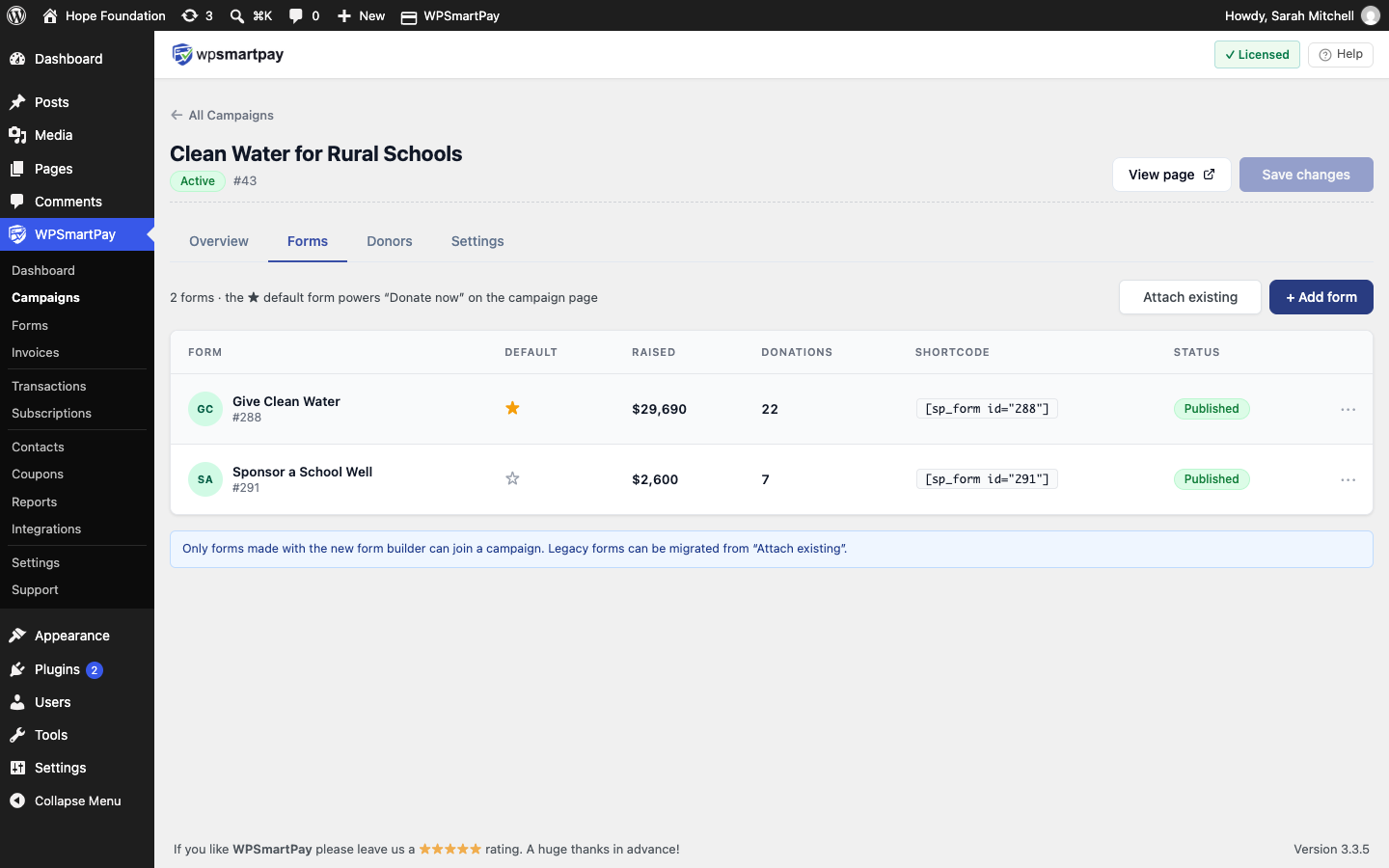
The first form you attach becomes the default form (★). The default form powers the Donate now button on the campaign page. Use Set as default on any row to change it. Detach removes a form from the campaign; the form is kept and goes back to its own goal.
Note: Only forms built with the form builder can join a campaign. Legacy forms are listed under Legacy forms with a Migrate to join a campaign button, which migrates the form and attaches it in one step.
You can also assign forms from SmartPay → Forms:
The Campaign column and filter show which campaign each form is in.
The bulk actions Assign to campaign and Remove from campaign move several forms at once.
In the form editor, Form Settings → Campaign sets the campaign and Make this the campaign's default form ★.
A form belongs to one campaign or none.
Campaign Goal vs Form Goal
While a form is in a campaign, its own goal is paused and the campaign goal is used instead. The form's Goal tab shows a notice instead of its fields. Detaching the form restores its own goal.
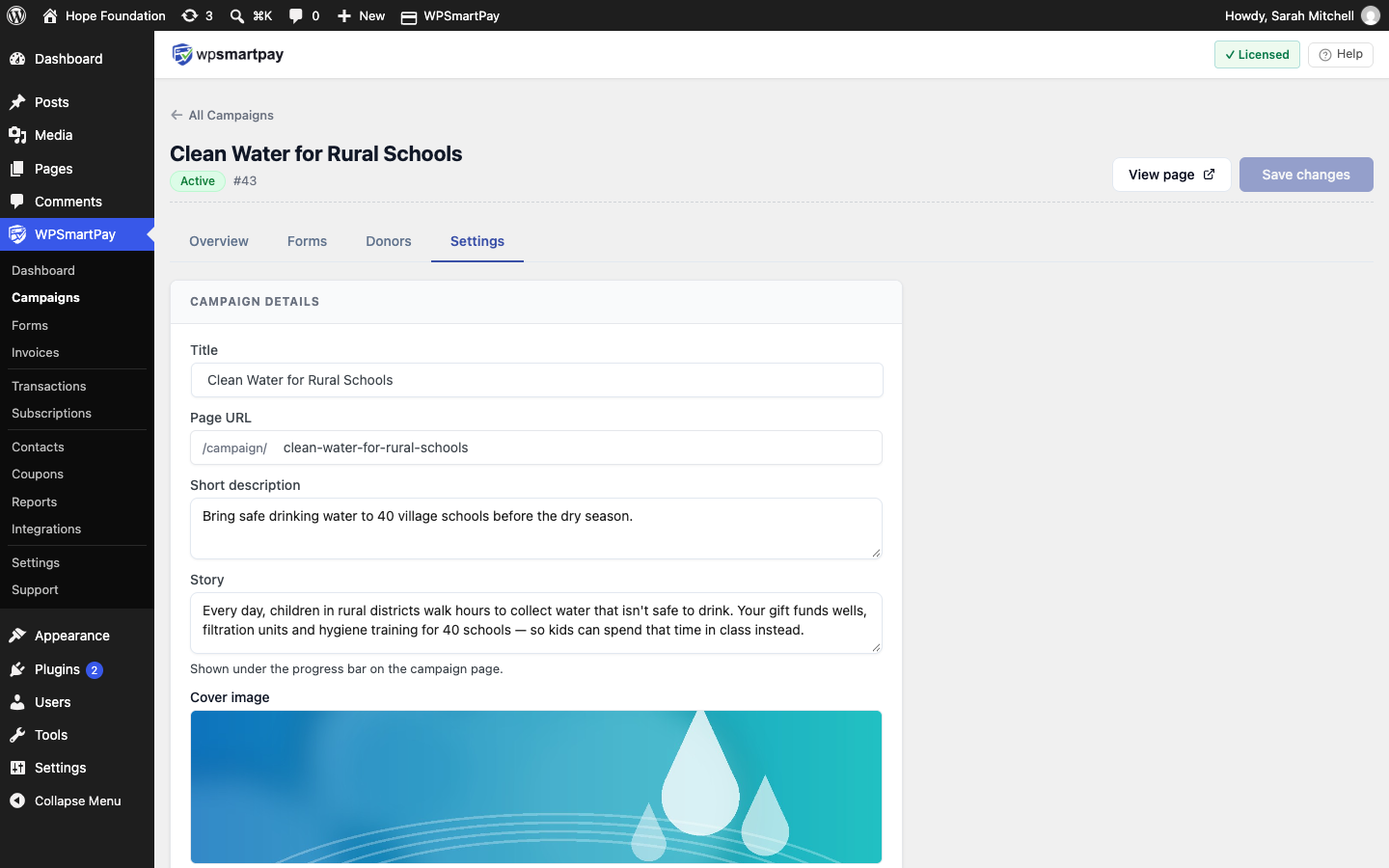
Campaign Settings
The Settings tab has these cards:
Campaign details
Title
Page URL — The slug after
/campaign/.Short description
Story — Shown under the progress bar on the campaign page.
Cover image
Goal
Goal type and Goal target
End date — Optional. After this date the campaign is Ended.
When goal is reached — Keep accepting (default) or Stop. When set to Stop, the forms show "This campaign has reached its goal. Thank you!"
Donor list (Pro) — See Donor Wall.
Click Save changes.
Campaign Overview
The Overview tab shows:
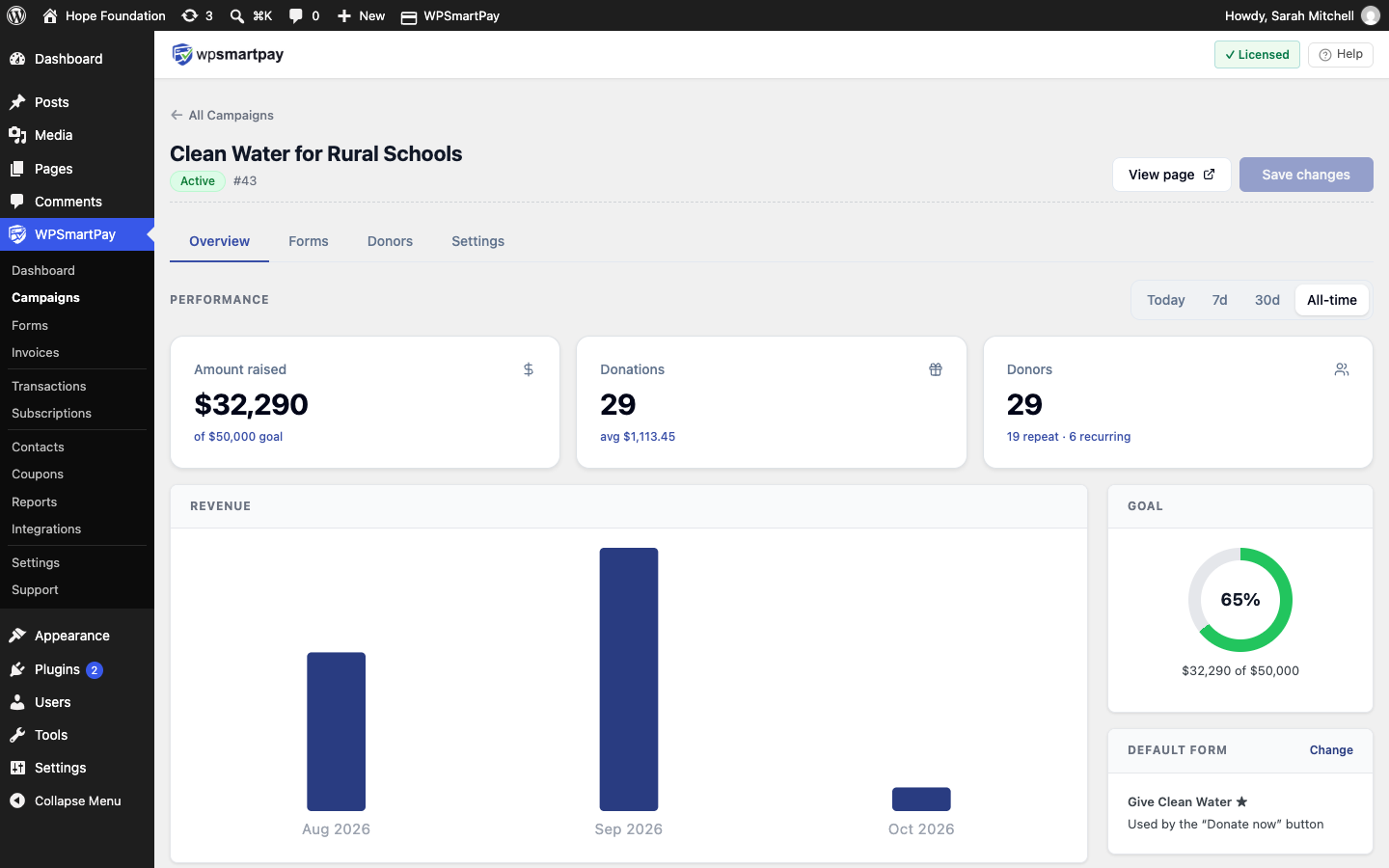
Performance for Today / 7d / 30d / All-time — Amount raised, Donations (with the average gift) and Donors (with repeat and recurring counts), plus a revenue chart.
Recent donations — The last 5 gifts.
A goal ring with percentage complete.
The Default form card.
Top donors — The top 5.
Campaign Donors Tab
Lists everyone who gave to this campaign. Gifts and totals count this campaign only. You can filter by donor type and by With comments / Anonymous.
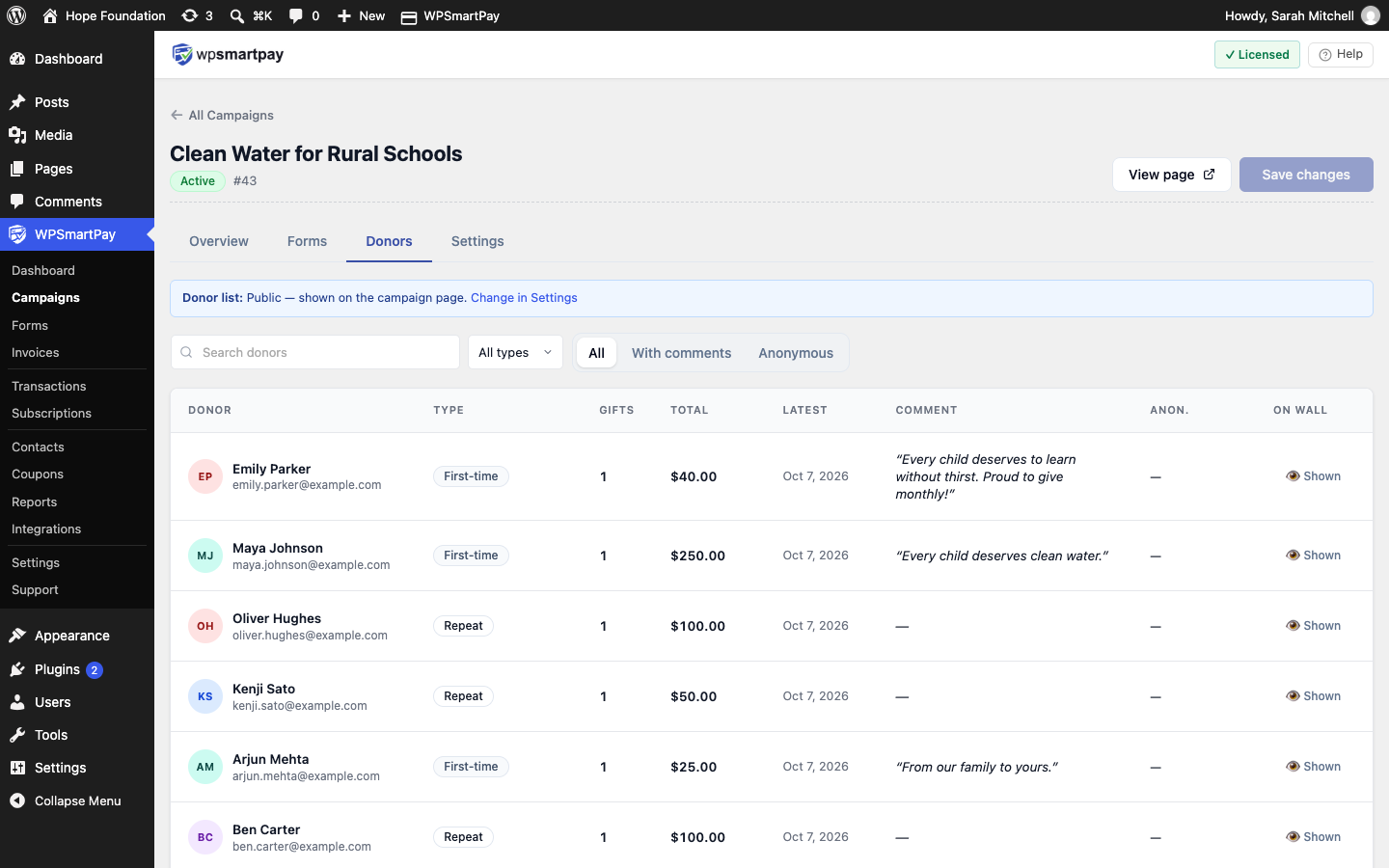
In the free plugin the donor list is private: only admins see it, and the campaign page shows counts, never names. To show donors publicly, see Donor Wall (Pro).
The Public Campaign Page
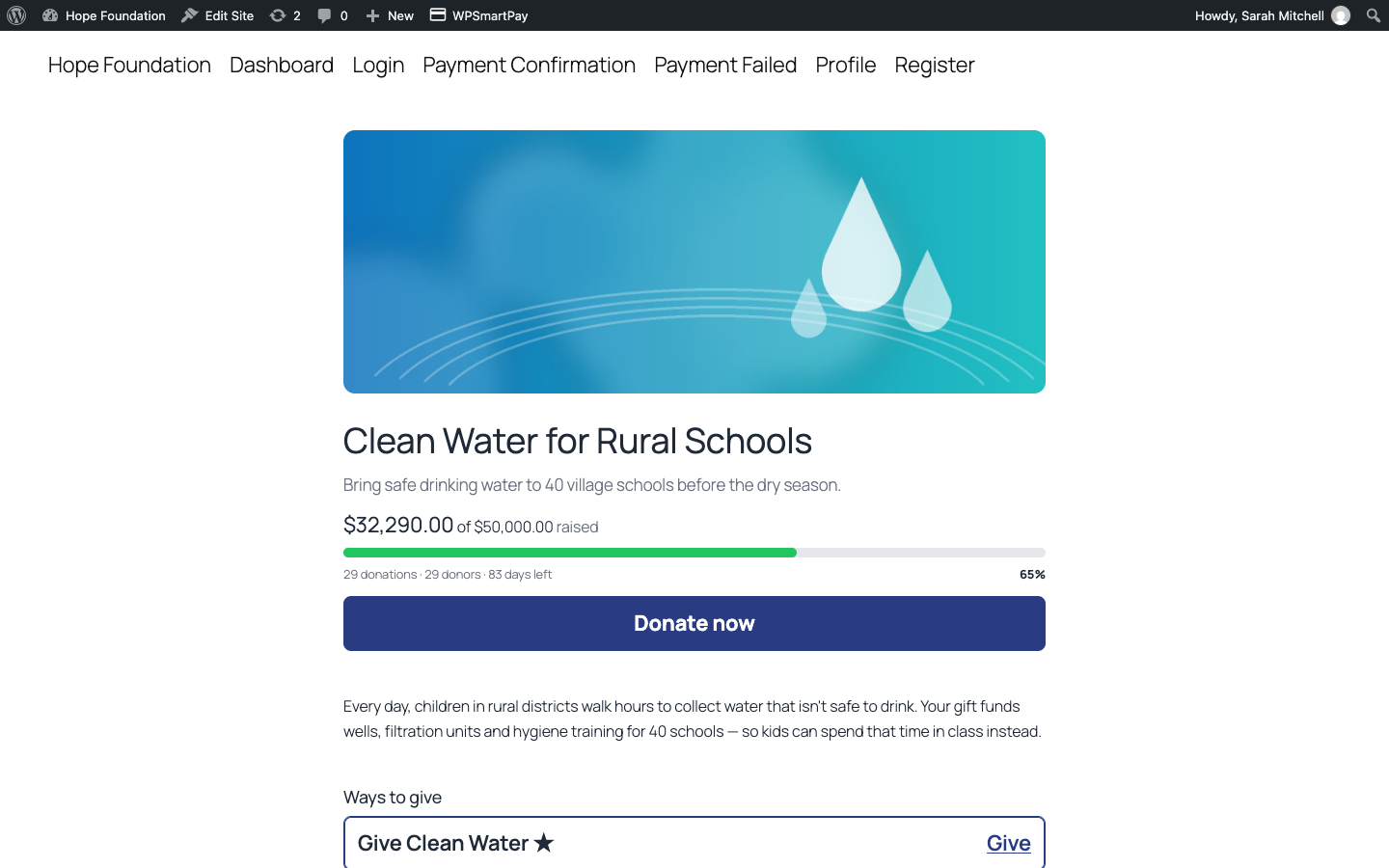
Every campaign has a page at yoursite.com/campaign/{slug}. Click View page to open it. The page shows:
The cover image, title and short description
A progress bar, for example "$3,200 of $5,000 raised · 42 donations · 38 donors · 12 days left"
A Donate now button, which scrolls to the form
The story
Ways to give — Shown when the campaign has more than one published form. Each form gets a Give link.
The default (or chosen) form, embedded
When the campaign has ended, the page shows "This campaign has ended. Thank you to everyone who gave." and hides the form.
Showing Progress Anywhere
Embed the progress bar on any page with the shortcode:
[smartpay_campaign_progress id="12"]Or use the WPSmartPay Campaign Progress block (Widgets category) and choose a campaign in the block settings.
How Totals Are Calculated
Only Completed payments on attached forms are counted, plus renewals of recurring gifts.
Refunded or failed payments are not counted.
Totals refresh within a minute.