
WP SmartPay lets you collect one-time and recurring donations, group donation forms into fundraising campaigns, and keep donors separate from customers — without a dedicated donation plugin.
How Donations Work
A gift is any payment made on a form that is either:
In a campaign — Every form attached to a campaign is a donation form.
Marked as a donation form — Turn on Treat as donation form in the form's Settings → Campaign tab.
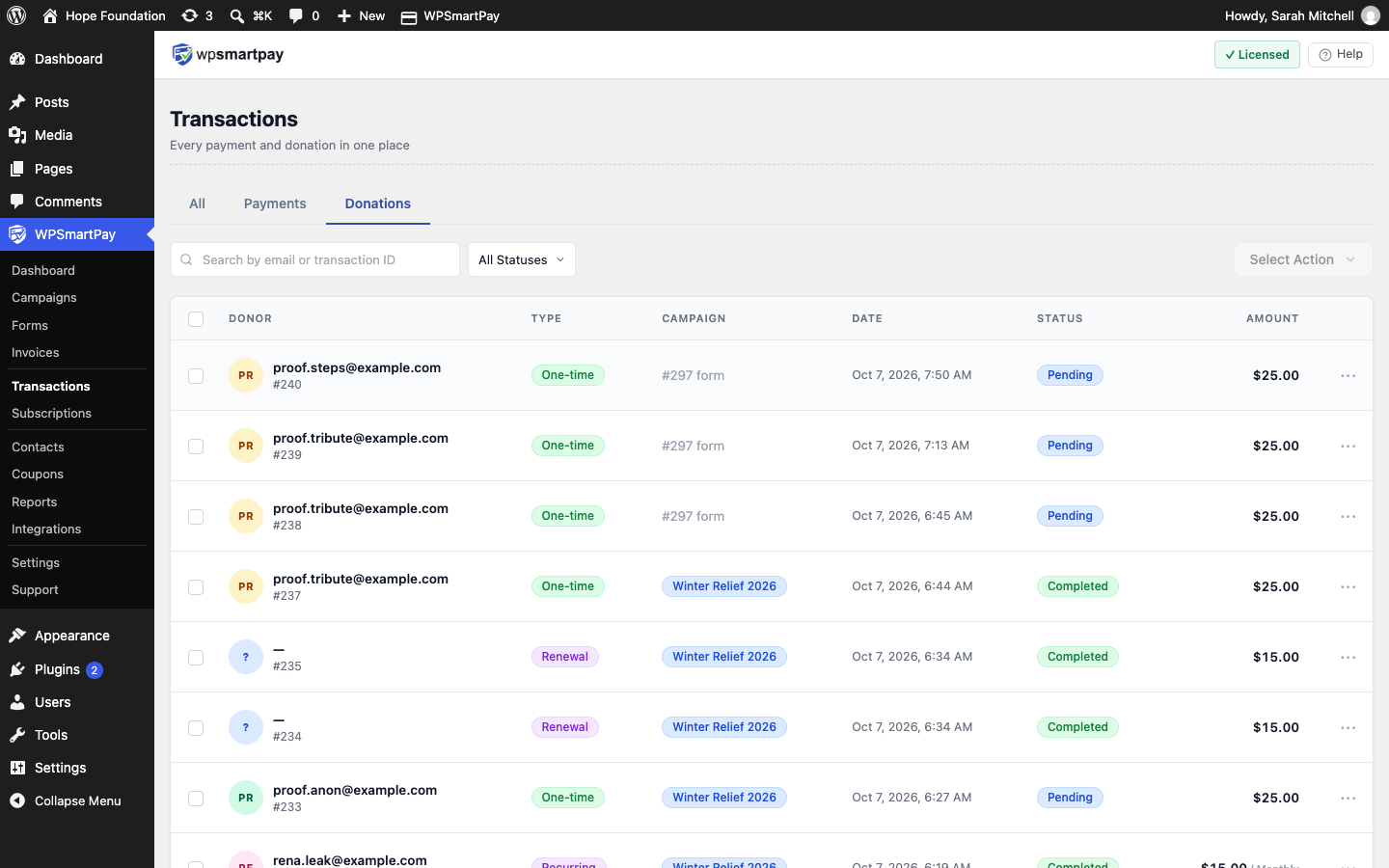
Payments on these forms are recorded as donations, and the people who pay them become donors. Everything else stays a normal payment and customer.
Note: A payment is classified once, when it is created. Moving a form into or out of a campaign later does not change past payments.
Where to Find Donations
SmartPay → Campaigns — Create campaigns, attach forms and track goals.
SmartPay → Transactions → Donations — Every gift. The Payments tab shows sales only; All shows both.
SmartPay → Contacts → Donors — Everyone who has given. Someone who both bought and gave appears under Customers and Donors.
SmartPay → Subscriptions → Donations (Pro) — Recurring gifts.
SmartPay → Reports → Campaigns (Pro) — Campaign performance.
Free vs Pro
Feature | Free | Pro |
|---|---|---|
Campaigns, goals and public campaign page | ✓ | ✓ |
Donation blocks (Give Anonymously, Donor Comment, Tribute, Step Break) | ✓ | ✓ |
One-time gifts | ✓ | ✓ |
Recurring gifts (Subscription pricing options, or donor-chosen custom amount billing) | — | ✓ |
Donors list and donor profile | ✓ | ✓ |
Giving tab in the customer dashboard | ✓ | ✓ |
Public donor wall and comment moderation | — | ✓ |
Private donor notes | — | ✓ |
Campaigns report and CSV export | — | ✓ |
Printable PDF receipt | — | ✓ |
Donors cancel their own recurring gift | — | ✓ |
Quick Start
Go to SmartPay → Campaigns and click + New Campaign.
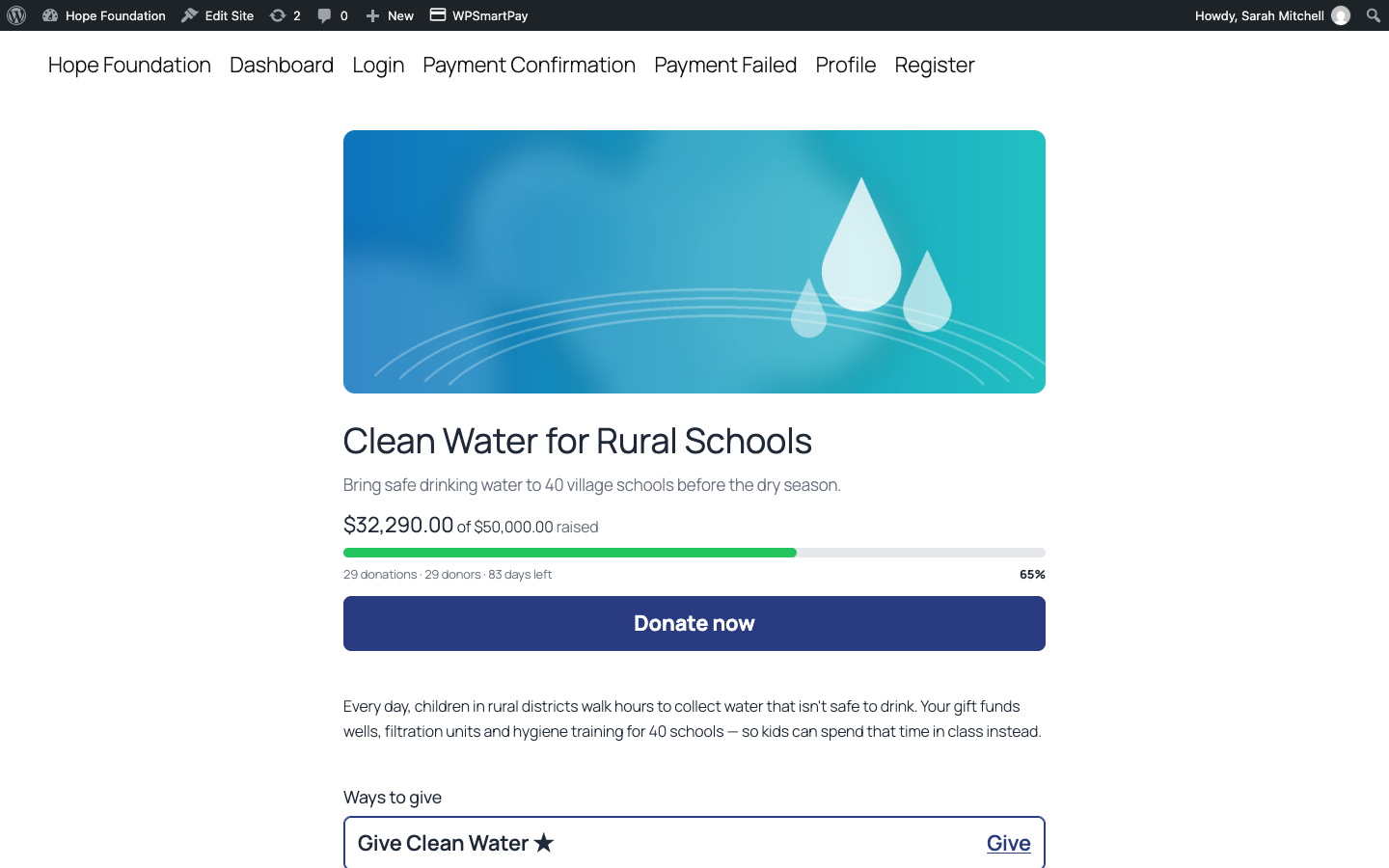
Give it a title, a goal and (optionally) an end date. Click Create campaign.
On the Forms tab, click + Add form and start from the Charity Donation template.
Publish the form, then click View page to see the campaign page.
See Creating and Managing Campaigns for each step in detail, and Donation Form Blocks for the blocks the template uses.