
The donor wall shows supporters on the campaign page — names, amounts, comments and dedications — with full control over what is public and moderation for comments. The donor wall requires WP SmartPay Pro.
Making the Donor List Public
Go to SmartPay → Campaigns, open a campaign and click Settings.
In the Donor list card, choose Public — show on campaign page.
Set the display options and click Save changes.
Private — admin only is the default. A private list is shown only in the campaign's Donors tab.
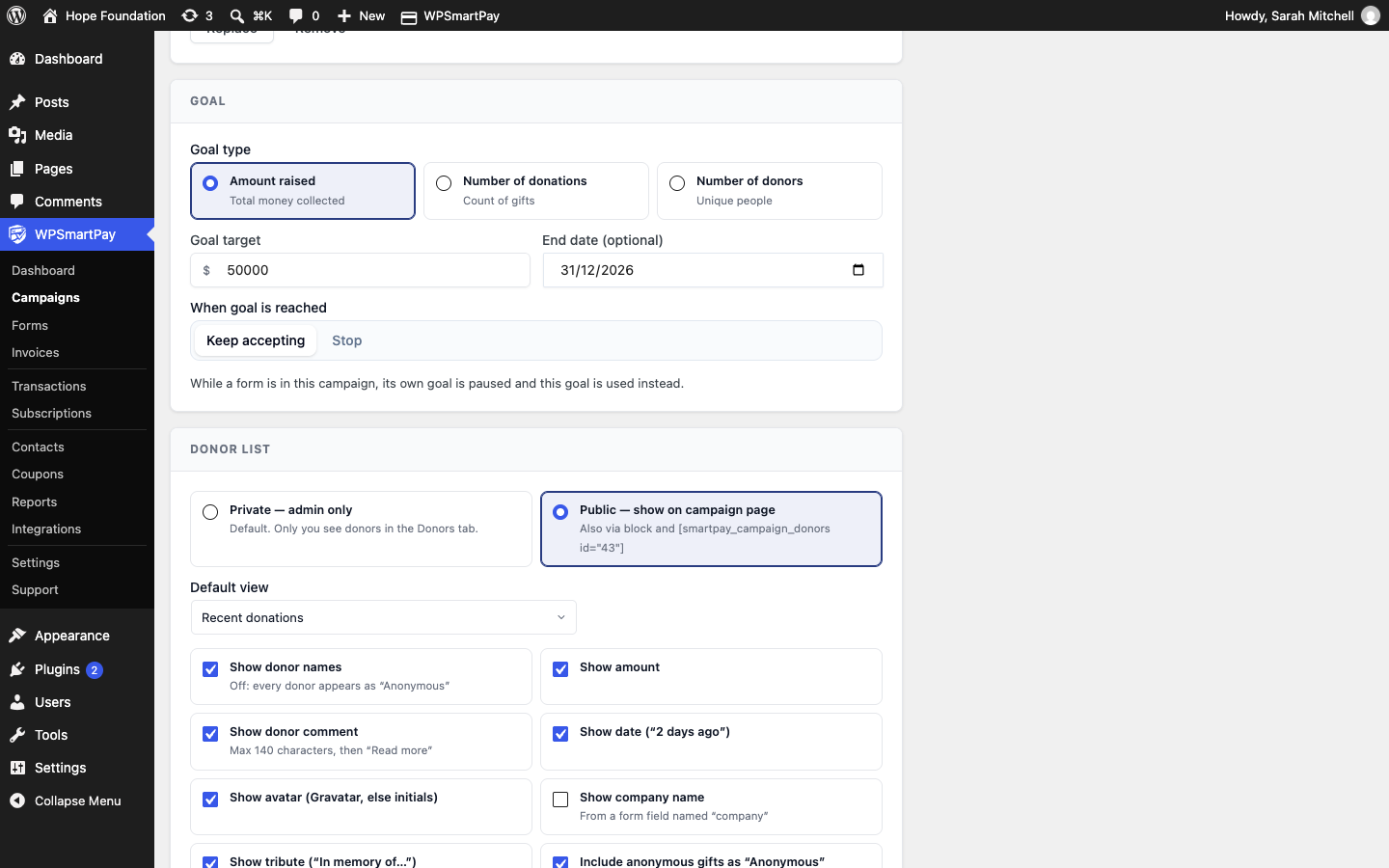
Display Options
Option | Default | Notes |
|---|---|---|
Default view | Recent donations | Or Top donors |
Show donor names | On | Off: every donor appears as "Anonymous" |
Show amount | On | |
Show donor comment | On | Max 140 characters, then "Read more" |
Show date | On | For example "2 days ago" |
Show avatar | On | Gravatar, otherwise initials |
Show company name | Off | From a form field named "company" |
Show tribute | On | "In memory of…" |
Include anonymous gifts as "Anonymous" | On | Off: anonymous gifts are left out |
Show "Donate" button under the list | On | |
"Load more" button | On | |
Hold comments for approval | Off | Approve each comment in the Donors tab |
Per page | 10 | 1–50 |
The Wall preview updates as you change options.
Moderating the Wall
On the campaign's Donors tab, the On wall column shows:
Pending approval — The comment is held. Click Approve to publish it.
Shown / Hidden — Hides all of this donor's gifts in this campaign from the wall.
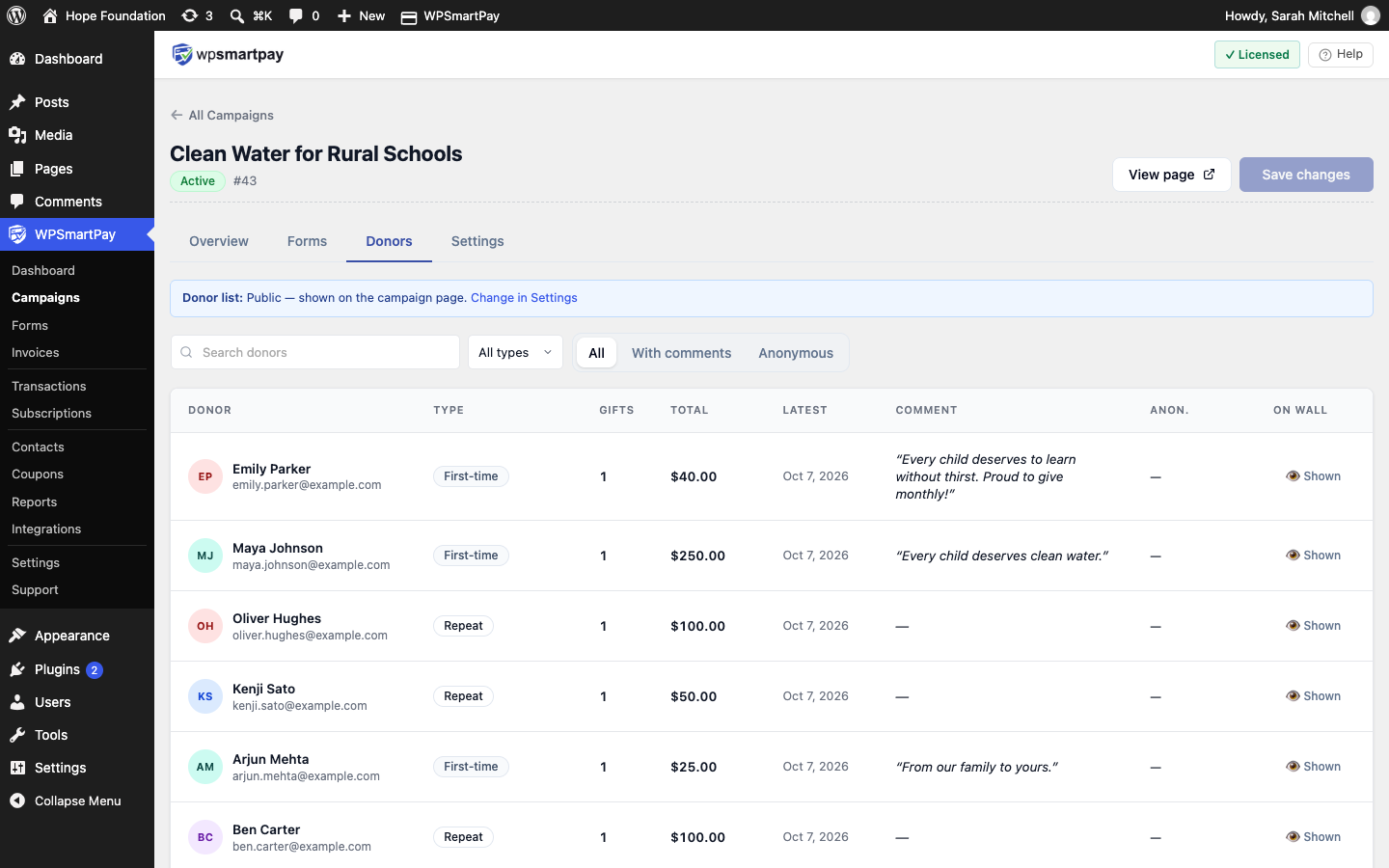
Donors who turned on Hide my name on public donor walls in their account always appear as "Anonymous".
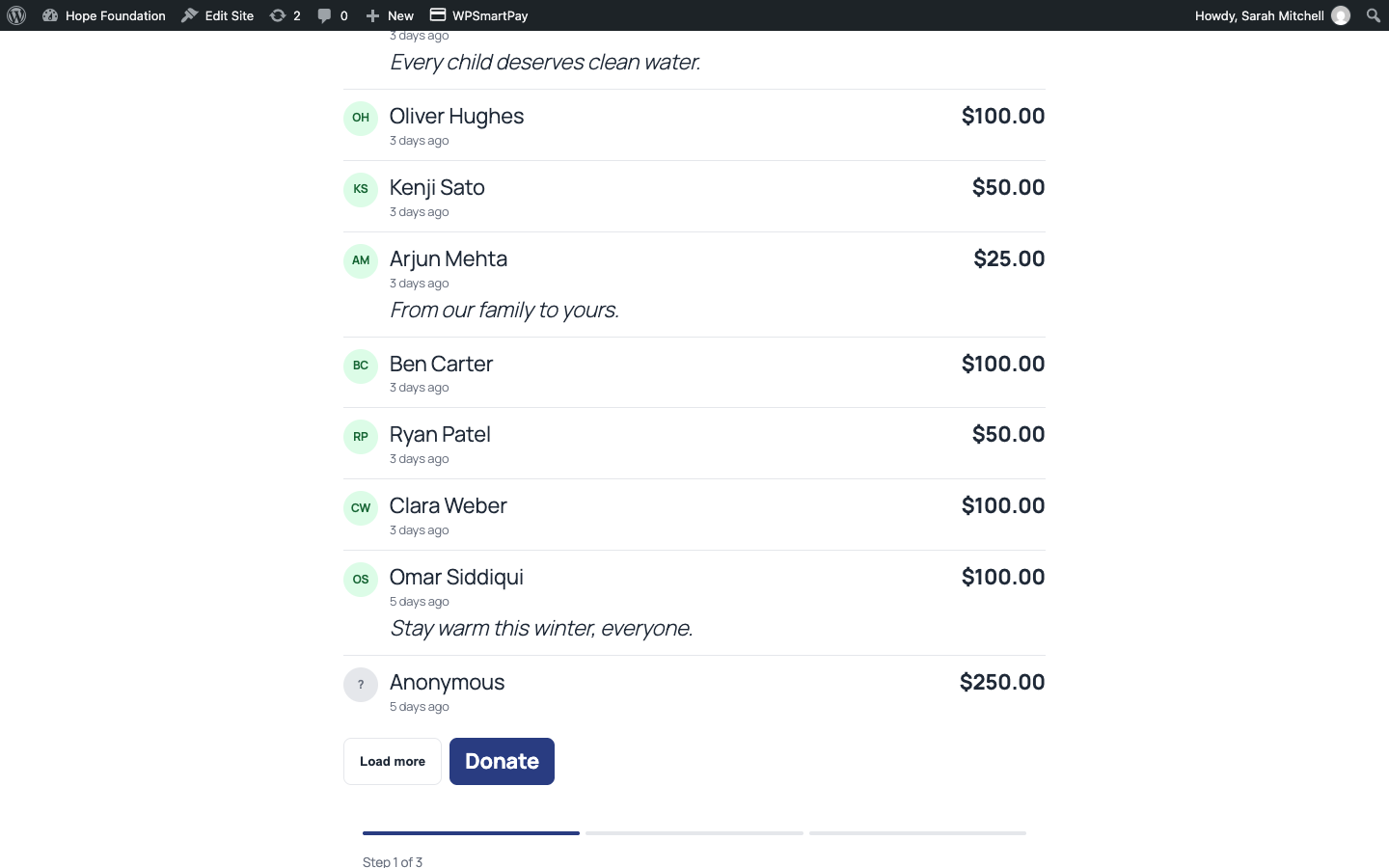
Placing the Wall Elsewhere
The wall appears automatically on the campaign page. To add it to another page, use the shortcode:
[smartpay_campaign_donors id="12"]Or use the WPSmartPay Campaign Donors block (Widgets category).
Note: If the donor list is Private, the block and shortcode show nothing to visitors.