M-Pesa lets your Kenyan customers pay straight from their phone. They type their Safaricom number on your checkout form, a PIN prompt appears on their handset, and the order completes the moment they confirm — no card, and no redirect away from your site. This guide covers getting a Daraja account, connecting it to WP SmartPay Pro, testing in sandbox, and going live.
Prerequisites
- A Safaricom Daraja developer account (free to create).
- A Safaricom Paybill or Buy Goods (Till) number for live payments, with Lipa na M-Pesa Online enabled on it.
- WP SmartPay Pro active with a valid license.
- Your store currency set to KES — M-Pesa settles only in Kenyan Shillings.
- HTTPS on your site, on the standard port 443. Safaricom will not deliver payment results to an
http://address.
Note: M-Pesa charges whole shillings only — an amount likeKES 10.50is rounded toKES 11before it is sent to Safaricom.
Step 1 — Create a Daraja App
- Log in to the Daraja portal.
- Go to My Apps and click Add a New App.
- Give it a name and tick the Lipa Na M-Pesa Sandbox product.
- Open the app and copy its Consumer Key and Consumer Secret.
You now have the two keys that authenticate SmartPay with Safaricom. You still need a shortcode and a passkey, which come from the next step.
Sandbox shortcode and passkey
For testing, Safaricom publishes a shared test shortcode and passkey on the Daraja portal under APIs → M-Pesa Express → Simulate:
| Field | Sandbox value |
|---|---|
| Shortcode | 174379 |
| Passkey | Shown on the M-Pesa Express Simulate page — copy it from there |
Live shortcode and passkey
For live payments you use your own numbers:
- Shortcode — your Paybill number, or for a Till account, your head-office store number.
- Passkey — Safaricom emails this to you when Lipa na M-Pesa Online is activated on your shortcode. If you do not have it, ask Safaricom business support to resend it.
Live keys also require a Go Live request in the Daraja portal, which links your production app to your shortcode. Approval usually takes a few business days.
Step 2 — Connect M-Pesa in SmartPay
- Go to SmartPay → Settings → Payment Gateways and open the M-Pesa section.
- Use the Sandbox / Live switch at the top right to choose which set of keys you are entering. This is the same switch as the store's global payment mode, so flipping it changes how the whole store takes payments.
- Fill in the Consumer Key, Consumer Secret, Shortcode and Passkey.
- Click Verify & connect. SmartPay asks Safaricom for an access token using those keys and only saves the connection if Safaricom accepts them.
- Turn on the toggle beside the M-Pesa name to show it at checkout, then click Save Changes.
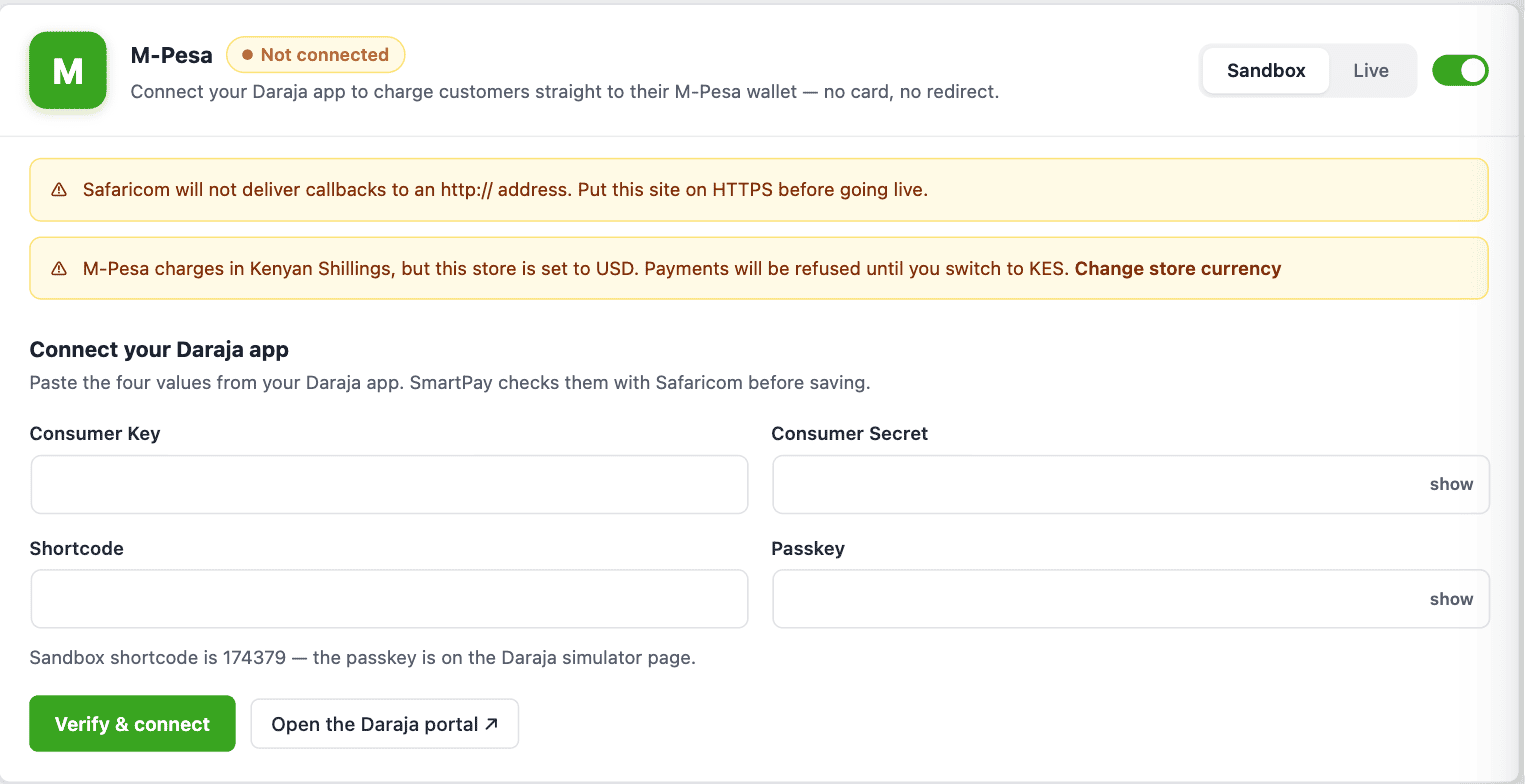
Note: The Business Account, Checkout, Refunds and Callbacks cards stay locked until the connection verifies — that is expected, not a bug.
Step 3 — Set Your Business Account Type
In the Business Account card, tell SmartPay how customers pay you:
| Setting | What it does |
|---|---|
| Paybill | Customers pay a Paybill number against an account reference. Use this if you have a Paybill. |
| Buy Goods (Till) | Customers pay a Till number with no account reference. Also fill in the Till Number field. |
| Account reference | What the customer sees as the account they paid, up to 12 characters. Leave it empty and SmartPay uses the order number (for example SP123), which makes reconciliation on your M-Pesa statement much easier. |
Step 4 — Give Safaricom Your Callback URL
Safaricom reports the outcome of every payment to a URL on your site. Without it, orders stay Pending until SmartPay's hourly reconciliation catches up.
The Callbacks & Security card lists three URLs, each with a copy button:
| URL | Used for |
|---|---|
| STK Push result | The outcome of a checkout payment. This is the one that matters for normal orders. |
| C2B confirmation | Payments customers make to your Paybill directly from their handset, outside your checkout. |
| C2B validation | Asked before Safaricom accepts a direct Paybill payment, if external validation is enabled on your shortcode. |
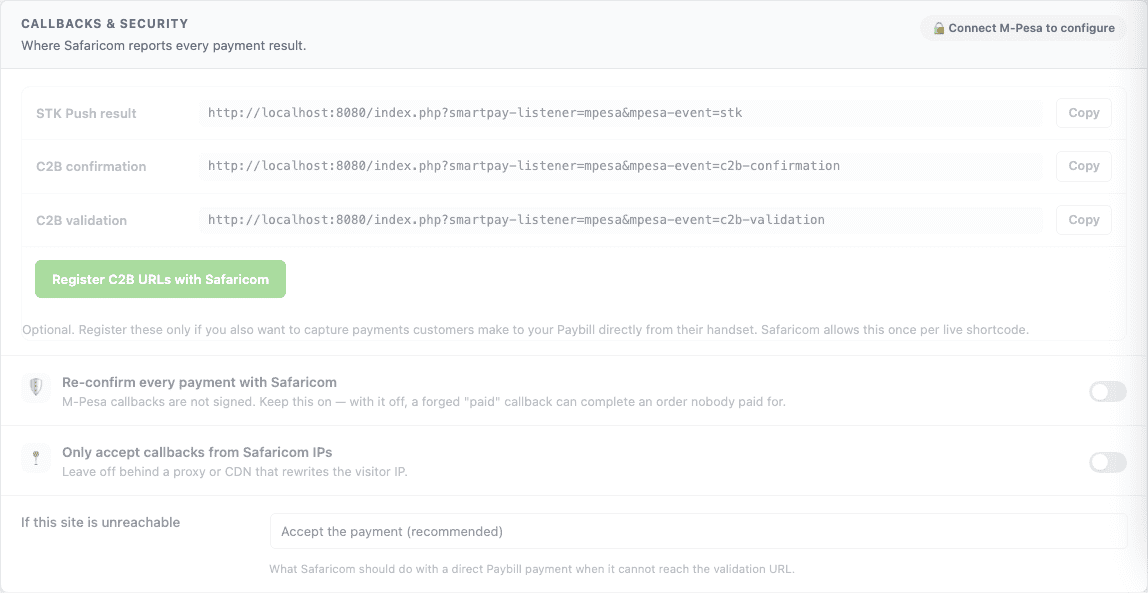
The STK Push result URL is sent to Safaricom automatically with every payment request, so there is nothing to paste for normal checkout payments. Some Daraja apps also ask for a default callback URL in the portal — if yours does, use the same STK Push result URL.
Registering the C2B URLs (optional)
If you also want SmartPay to see payments customers make to your Paybill straight from their phone, click Register C2B URLs with Safaricom in the same card.
Note: Safaricom allows C2B URLs to be registered only once per live shortcode. Changing them later means contacting Safaricom support, so register from your final production domain — not a staging site.
Step 5 — Test in Sandbox
With the Sandbox switch on and sandbox keys saved:
- Open a page with a SmartPay payment form.
- Choose M-Pesa and enter a Safaricom test number in the phone field — Daraja's sandbox test number is
254708374149. - Click Pay. SmartPay shows a "Check your phone" panel with a countdown while it waits.
- Sandbox does not ring a real handset. Confirm the request from the Daraja portal's M-Pesa Express Simulate page, or wait for the sandbox to auto-resolve it.
- The payment appears under SmartPay → Payments with the M-Pesa receipt number as its transaction ID.
The phone field accepts any format a Kenyan customer is likely to type — 0712345678, +254 712 345 678, or 254712345678 all work. A number that is not a Safaricom line is rejected in the browser before an order is created.
What the Customer Sees
- They pick M-Pesa and type their phone number.
- They press Pay, and a PIN prompt appears on their handset within a few seconds.
- Your checkout shows "Check your phone" with the amount and a countdown.
- They enter their M-Pesa PIN. The checkout confirms the payment and sends them to your receipt page.
If the prompt never arrives, the panel tells them to dial *334# and pay manually. If they cancel, run out of balance, or enter the wrong PIN, they see the exact reason and a Try again button rather than a generic failure.
Settings Reference
| Setting | What it does |
|---|---|
| How long to wait | How long the checkout waits for the customer to enter their PIN before offering a retry. 90 seconds suits most stores. |
| Checkout instructions | Replaces the default wording shown under the phone-number field. |
| Refund through M-Pesa | When a payment is marked Refunded in SmartPay, request an M-Pesa reversal automatically. Off by default. See Refunds below. |
| Re-confirm every payment with Safaricom | M-Pesa does not sign its callbacks, so SmartPay asks Safaricom to confirm a payment before completing the order. Keep this on — see the warning below. |
| Only accept callbacks from Safaricom IPs | Extra hardening. Leave it off if your site sits behind a proxy or CDN that rewrites the visitor IP, or genuine callbacks will be dropped. |
| If this site is unreachable | What Safaricom should do with a direct Paybill payment when it cannot reach your validation URL. Accepting is recommended — rejecting bounces the customer's money. |
Why "Re-confirm every payment" matters: Safaricom does not sign its callbacks, and the id that identifies a payment is handed to the customer's own browser. Re-confirmation is therefore the only thing separating a real payment from a forged one. With the setting off, anyone who can reach your site can post a fake "paid" callback and complete an order nobody paid for.
Turning it off does not make slow or unreliable hosting safer, either. If SmartPay cannot reach Safaricom, the payment simply stays Pending and the hourly reconciliation settles it once Safaricom answers — a delay of up to an hour, not a lost sale.
Refunds
M-Pesa has no refund button. The equivalent is a Reversal, which is a privileged operation that needs extra credentials. You have two options.
Refund manually (simplest)
Leave Refund through M-Pesa off, reverse the transaction in your M-Pesa Org portal, then mark the payment Refunded in SmartPay → Payments to keep your records straight.
Refund from SmartPay
To have SmartPay request the reversal for you, fill in the Refunds card:
- Initiator Name — the API operator username created in your M-Pesa Org portal. In sandbox this is
testapi. - Initiator Password — that operator's password. SmartPay encrypts it with Safaricom's certificate before sending; it is never transmitted as-is.
- Certificate — download
SandboxCertificate.cerorProductionCertificate.cerfrom the Daraja portal and paste its contents here. - Turn on Refund through M-Pesa and save.
Marking a payment Refunded now sends a reversal request to Safaricom. Reversals are asynchronous — Safaricom accepts the request first and reports the real outcome minutes later, so check your M-Pesa statement to confirm the money actually moved.
Supported Currency
M-Pesa charges in KES only. If your store currency is anything else, the M-Pesa settings screen warns you and payments are refused. Change the currency under SmartPay → Settings → General.
Limits
| Limit | Value |
|---|---|
| Minimum payment | KES 1 |
| Maximum per transaction | KES 250,000 |
| Account reference length | 12 characters |
Subscriptions
SmartPay does not take recurring M-Pesa payments yet. The checkout uses STK Push, where every charge needs the customer to enter their PIN on their handset — so your store cannot charge them again on a schedule the way it can with a saved card.
A subscription checkout on M-Pesa is therefore refused with a message asking the customer to pick another payment method. Enable a card gateway such as Stripe alongside M-Pesa if you sell subscriptions. One-off payments work normally.
Safaricom does have a recurring product — M-Pesa Ratiba, the Standing Order API — but it works differently from a card subscription, and support for it is not built into SmartPay:
| Card subscription | M-Pesa Ratiba | |
|---|---|---|
| Who starts each payment | Your store, when the renewal is due | Safaricom, on the customer's standing order |
| Amount | Can change — upgrades, proration, usage | Fixed when the standing order is set up |
| Schedule | Any billing period you define | Daily, weekly, monthly or yearly |
| Cancelling | You or the customer, and your store is told | The customer can cancel it from their M-Pesa menu |
| Availability | Any account | A commercial API — needs separate Safaricom approval |
Note: If you need M-Pesa standing orders, contact [email protected] about M-Pesa Ratiba access, and let us know — it is on the roadmap and merchant demand decides when it gets built.
Common Errors & Fixes
- "M-Pesa rejected these API credentials" — the Consumer Key and Secret do not match, or they belong to the other environment. Sandbox keys never work in live mode and vice versa.
- Payments stay Pending — either Safaricom could not reach your callback URL, or it arrived but SmartPay could not re-confirm it with Safaricom (an unconfirmed payment is deliberately left pending rather than completed). Check that your site is on HTTPS on port 443, is publicly reachable, and is not behind a maintenance-mode plugin or IP allowlist; then check the debug log for a failed STK Query, which points at outbound connections from your host rather than inbound ones. Either way SmartPay reconciles pending payments hourly, so they correct themselves — the callback is what makes it instant.
- "That does not look like a Safaricom number" — the number is not a Kenyan mobile line. Safaricom numbers start
07or01after the leading zero. - "We could not reach your phone" (result 1037) — the handset was off, out of coverage, or the customer ignored the prompt. They can retry.
- "You have another M-Pesa transaction in progress" (result 1001) — the customer has an unfinished M-Pesa session. They should finish or cancel it, then retry.
- "M-Pesa rejected the request payload" — usually a wrong Shortcode or Passkey pairing, or Account Type set to Till without a Till number. Re-check the Business Account card.
- Callbacks are being dropped — if you turned on Only accept callbacks from Safaricom IPs and your site is behind Cloudflare or a load balancer, the source IP SmartPay sees is the proxy's, not Safaricom's. Turn the setting off.
Where to Look When Something Goes Wrong
- SmartPay → Payments — the payment's status and its M-Pesa receipt number.
- The debug log — every M-Pesa request, callback and reconciliation is recorded there. See Using the Debug Log.
- The Daraja portal's API Logs — Safaricom's own record of what it sent you and what your site answered.