
Payments List & Filtering
The WP SmartPay payments list is your central ledger for every payment record on the site. You can search, filter, and export records from one screen without writing any SQL or digging through WordPress posts.
Opening the Payments List
Go to SmartPay → Payments in your WordPress admin sidebar.
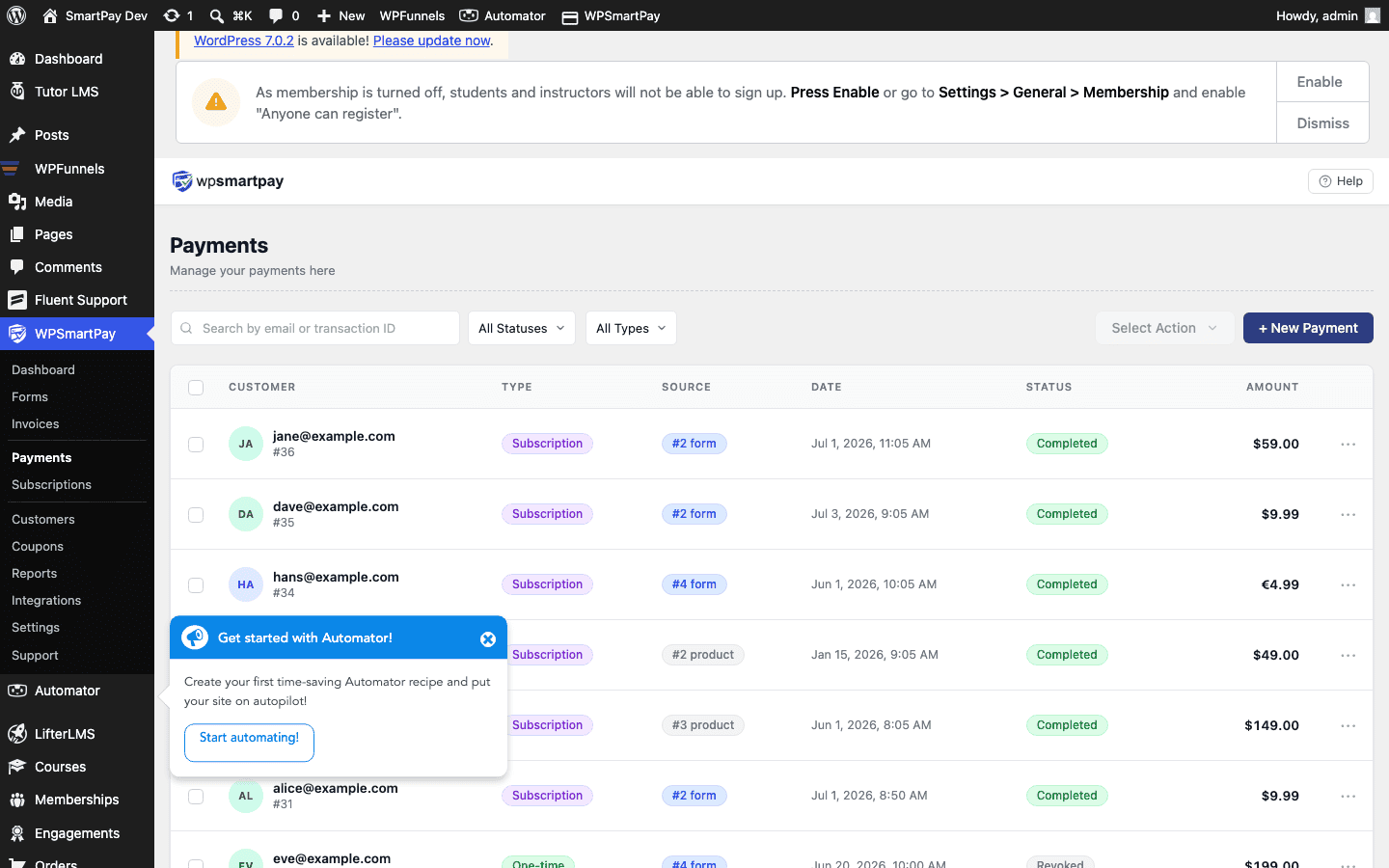
Column Overview
- ID — Unique payment number (e.g., PAY-0042). Click to open the payment detail page.
- Customer — Customer name and email. Click the name to open the customer detail page.
- Form / Product — The payment form or digital product that generated this payment.
- Gateway — The payment gateway used (Stripe, PayPal, etc.).
- Amount — The total charged, in your store currency.
- Status — Current payment status badge (Completed, Pending, Failed, etc.).
- Date — The date and time the payment was created.
Searching Payments
The search bar at the top accepts any of these:
- Customer email address
- Customer name (partial match)
- Payment ID (e.g., PAY-0042)
Results update as you type; no need to press Enter.
Filtering by Status
Tabs across the top of the list let you filter by payment status with one click:
- All — Every payment regardless of status.
- Completed — Successful payments.
- Pending — Awaiting confirmation from the gateway.
- Failed — Gateway declined or errored.
- Refunded — Payment has been refunded.
- Cancelled — Customer or admin cancelled before completion.
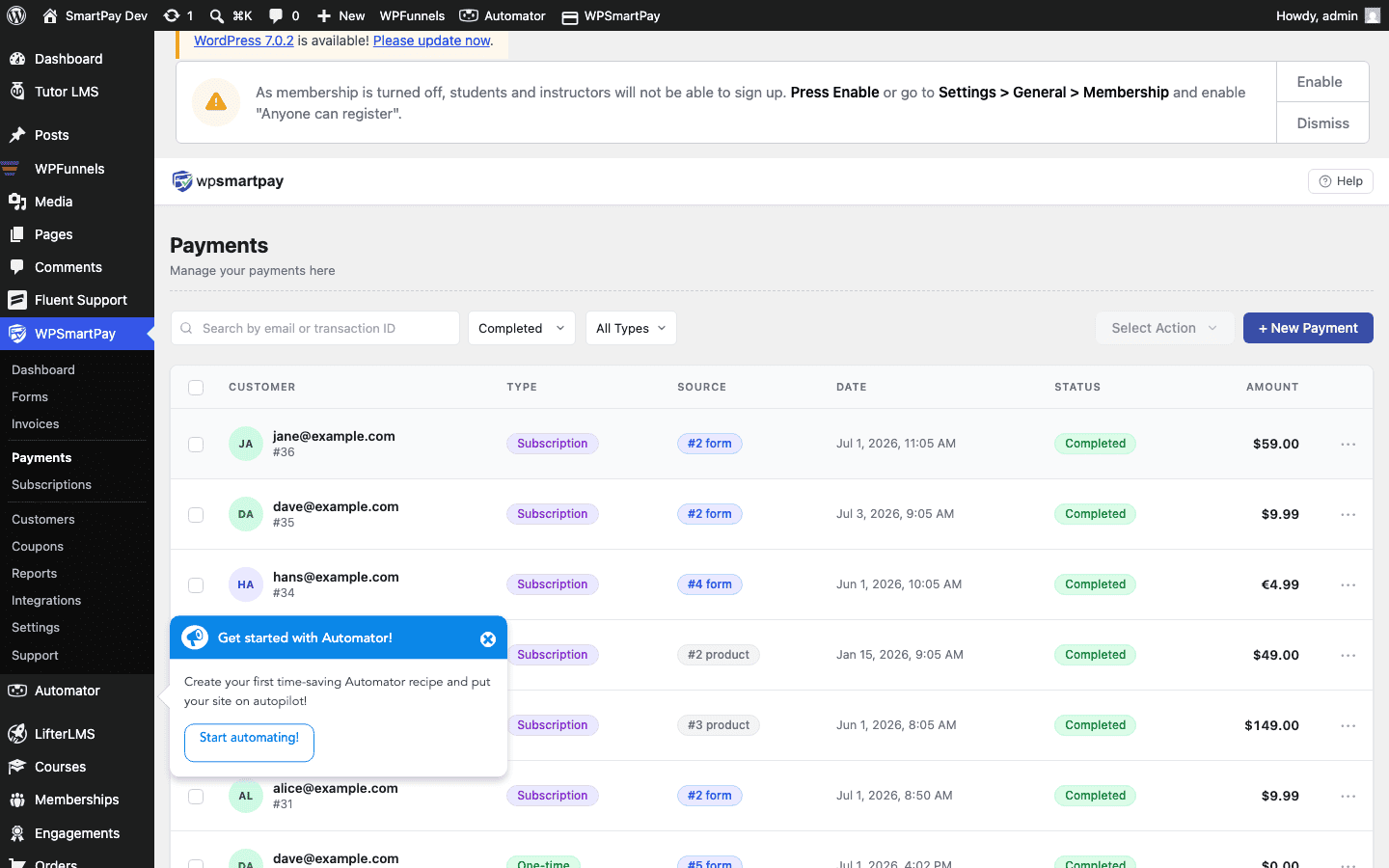
Additional Filters
A filter dropdown or date picker (depending on your version) lets you narrow results by:
- Date range — Start and end date.
- Gateway — Show payments from a specific processor only.
- Mode — Filter between Live and Test payments.
Sorting
Click any column header to sort the list. Click again to reverse direction. Sorting by Amount and limiting to Completed payments is an easy way to find your largest single transactions.