
Subscription Detail & Management
Clicking any subscription in the SmartPay list opens its detail page — a complete view of the billing plan, renewal history, and customer information, with tools to manage or cancel the subscription.
Opening a Subscription
Go to SmartPay → Subscriptions and click the subscription ID or customer name.
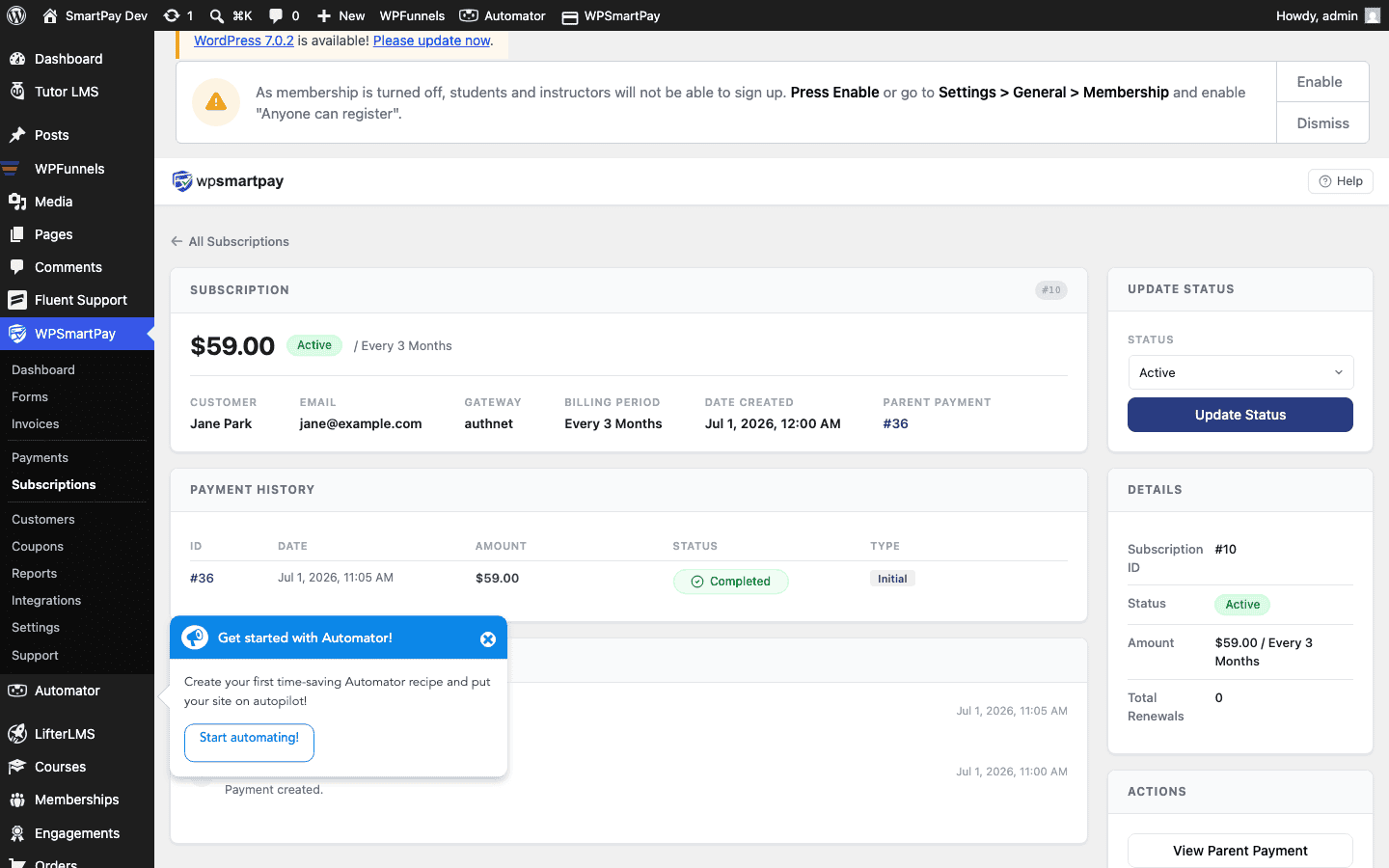
Plan Summary
The top section displays the core subscription terms:
- Status badge — Active, Trialling, Failing, Cancelled, or Expired.
- Amount & Interval — The recurring charge amount and billing frequency (e.g., $49.00 / month).
- Start Date — When the first charge was made (or when the trial ends if trialling).
- Next Renewal — The next scheduled billing date.
- Expiry — If max billing cycles are set, the date the plan will expire after the last cycle.
- Gateway — Which payment processor manages the billing.
- Gateway Subscription ID — The processor's own ID (e.g., Stripe's
sub_…). Useful when cross-referencing with your gateway dashboard.
Customer Info
The customer card shows the subscriber's name, email, and a link to their full customer profile, where you can see all their other payments and subscriptions.
Linked Payment History
A table below the plan summary lists every payment associated with this subscription — one row per billing cycle — with the date, amount, and status. Click any row to open the full payment detail page for that renewal charge.
Admin Actions
- Cancel — Cancels the subscription at the gateway and marks it Cancelled in SmartPay. See Cancelling a Subscription for the full cancellation walkthrough.
- View Customer — Opens the customer profile page.