
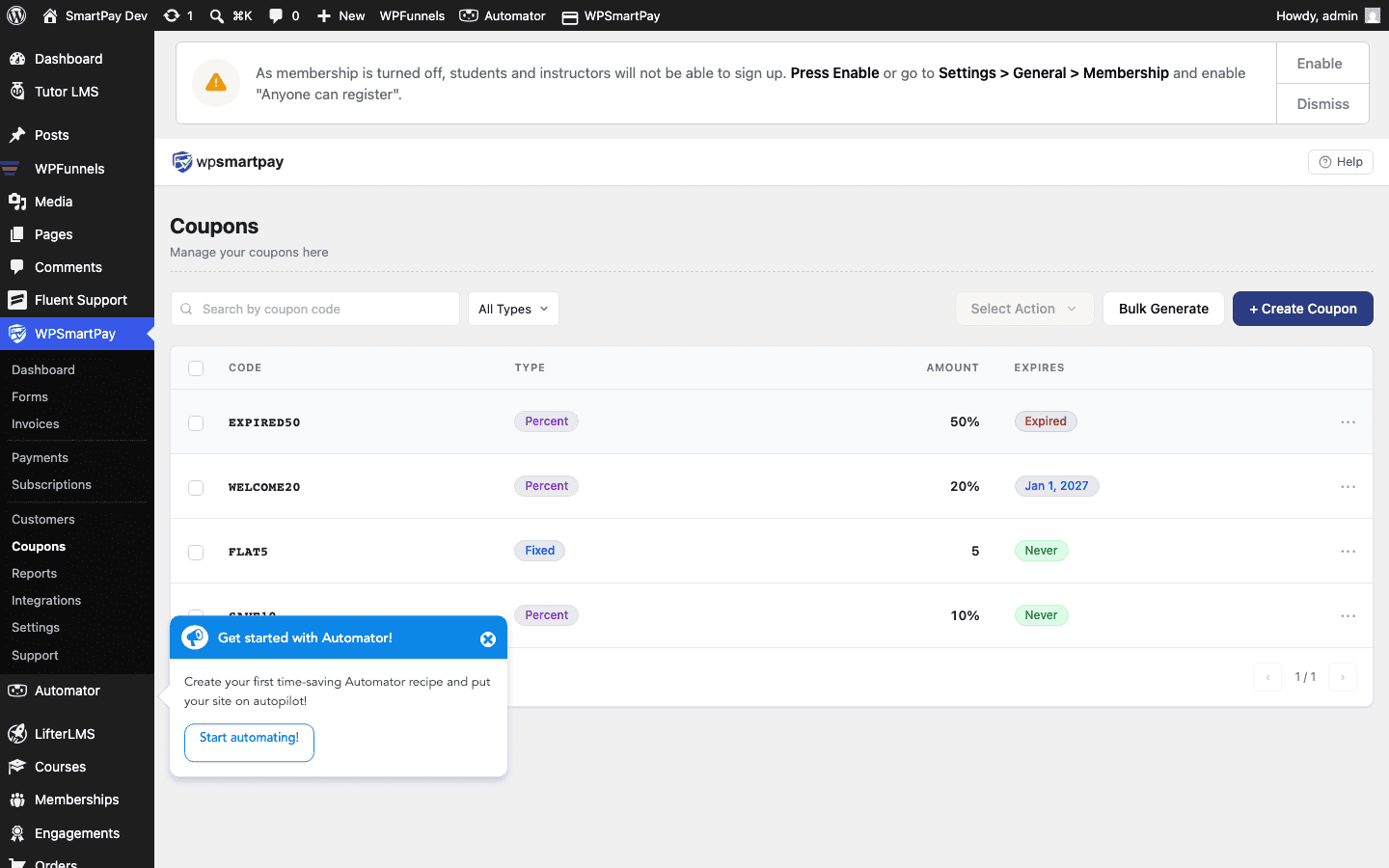
WP SmartPay Pro includes a coupon system that lets you create discount codes for your payment forms. Customers enter the code at checkout and the discount is applied automatically before payment.
Opening the Coupons List
Go to SmartPay → Coupons. The list shows all existing coupons with their code, discount type, usage count, and status.
Creating a New Coupon
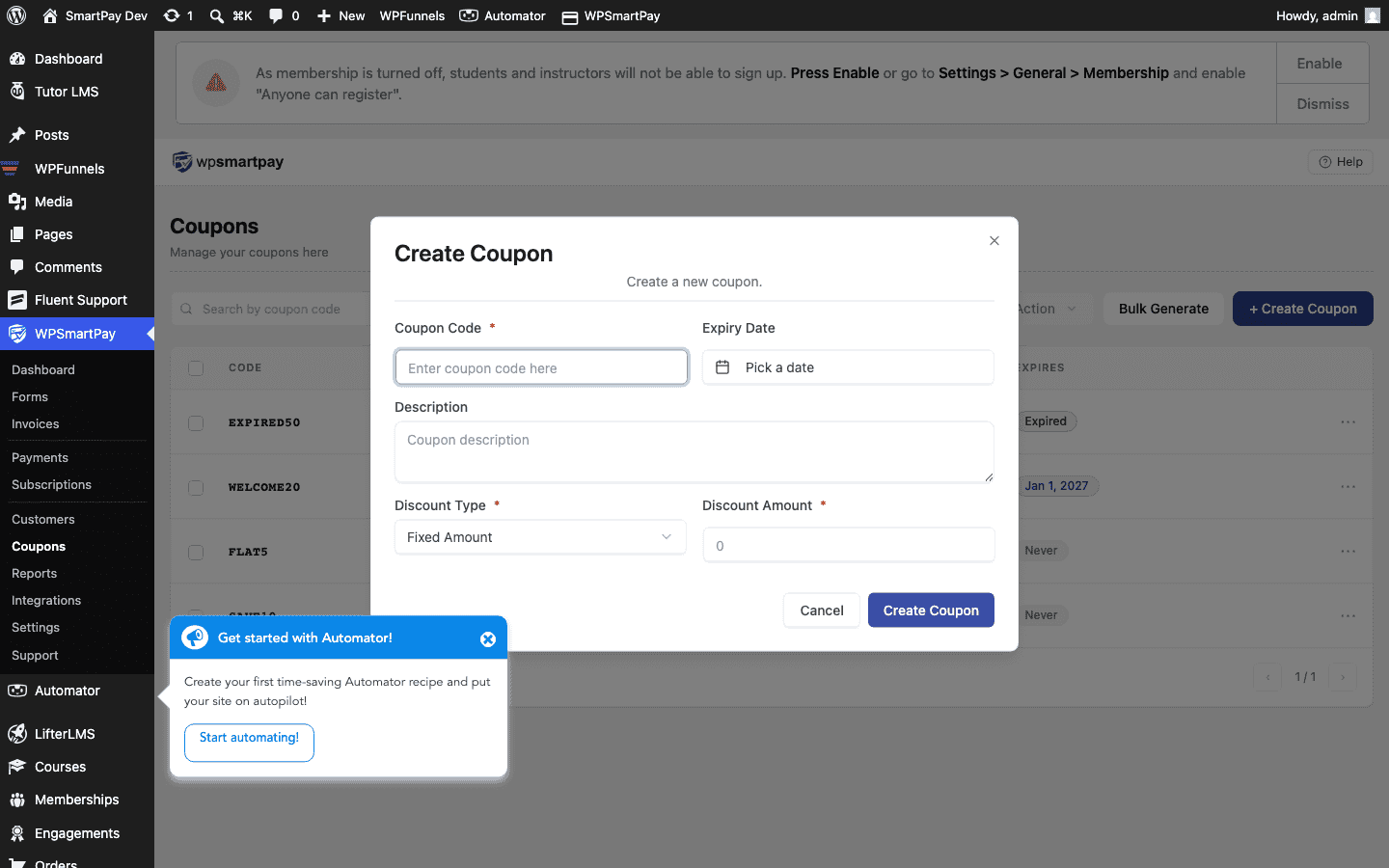
Click Add Coupon at the top right of the list. A drawer or form opens with these fields:
Required Fields
- Coupon Code — The code customers will enter at checkout (e.g., SAVE20, WELCOME10). Can be any alphanumeric string. Not case-sensitive.
- Discount Type — Choose Flat (fixed amount off) or Percentage (percent off the total).
- Discount Amount — For Flat: the dollar amount. For Percentage: the percentage (e.g., 20 for 20% off).
Optional Fields
- Status — Active or Inactive. Inactive coupons are rejected at checkout even if the code is entered correctly.
- Start Date — The coupon is not valid before this date.
- End Date / Expiry — The coupon stops working after this date and time.
- Maximum Uses — Total number of times the coupon can be used across all customers. Leave blank for unlimited.
- Max Uses Per Customer — How many times a single customer (matched by email) can use the code.
- Applicable Forms — Restrict the coupon to one or more specific payment forms. Leave blank to allow it on any form.
Editing a Coupon
Click the coupon code or the Edit action in the Coupons list to reopen the form. All fields except the original code can be changed after creation.
Deleting a Coupon
Click Delete in the coupon's action row. Deleted coupons are removed permanently. Payments made with the coupon are not affected — the discount is already recorded on those payment records.
Usage Tracking
The Used column in the Coupons list shows how many times each code has been applied. Click the usage count to see a list of payments that included this coupon.