
Clicking a customer in the SmartPay list opens their profile page — a complete view of their contact information, purchase history, subscriptions, and lifetime value.
Opening a Customer Profile
Go to SmartPay → Customers and click the customer's name to open their detail page.
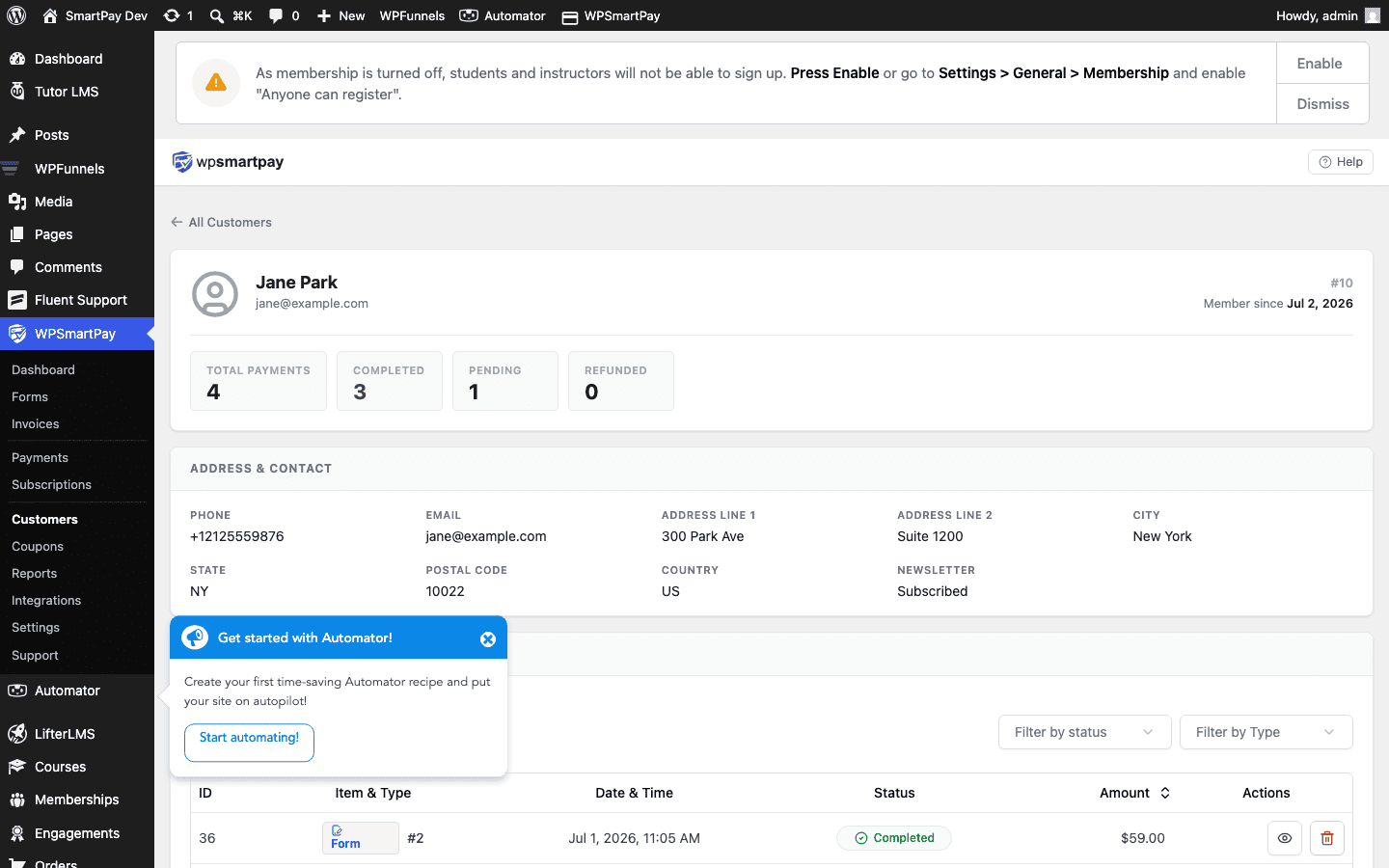
Profile Hero
The top of the page shows:
- Avatar — Auto-generated from the customer's email via Gravatar. No Gravatar account? A generated letter-avatar is shown instead.
- Name — As entered at checkout.
- Email — Primary email address. Click to pre-fill your email client.
- WordPress User — If the customer has a WordPress account linked to this email, a user link appears here.
Stats Strip
Three summary cards beneath the hero show quick stats:
- Total Payments — Count of completed payments from this customer.
- Lifetime Revenue — Sum of all completed payment amounts.
- Last Payment — Date and amount of the most recent completed payment.
Payments Table
A scrollable table lists every payment associated with this customer — most recent first — with columns for form/product, amount, gateway, status, and date. Click any row to open the full payment detail page.
Subscriptions Panel (Pro)
If the customer has any subscriptions, a Subscriptions panel appears below the payments table showing:
- Subscription ID and linked form
- Amount and billing interval
- Status (Active, Cancelled, Expired)
- Next renewal date (for active subscriptions)
Click the subscription ID to open the full subscription detail page where you can view renewal history or cancel.