
WP SmartPay Pro connects your payment system to the tools you already use — email marketing platforms, CRMs, automation workflows, LMS platforms, and membership plugins. This article explains how integrations work and how to activate them.
How Integrations Work
SmartPay integrations listen to payment lifecycle events — payment completed, subscription created, subscription cancelled, payment failed — and take action in connected tools. No custom code required.
For example, when a payment is completed:
- A Mailchimp integration can subscribe the buyer to an audience
- A LearnDash integration can enroll the buyer in a course
- A Slack integration can post a notification to your sales channel
- A Zapier integration can trigger any workflow you've built
Activating an Integration
- Go to SmartPay → Extensions.
- Find the integration you want to enable and click the toggle to activate it.
- Click the gear icon to open the integration's settings.
- Enter your API key, select your list or workspace, and save.
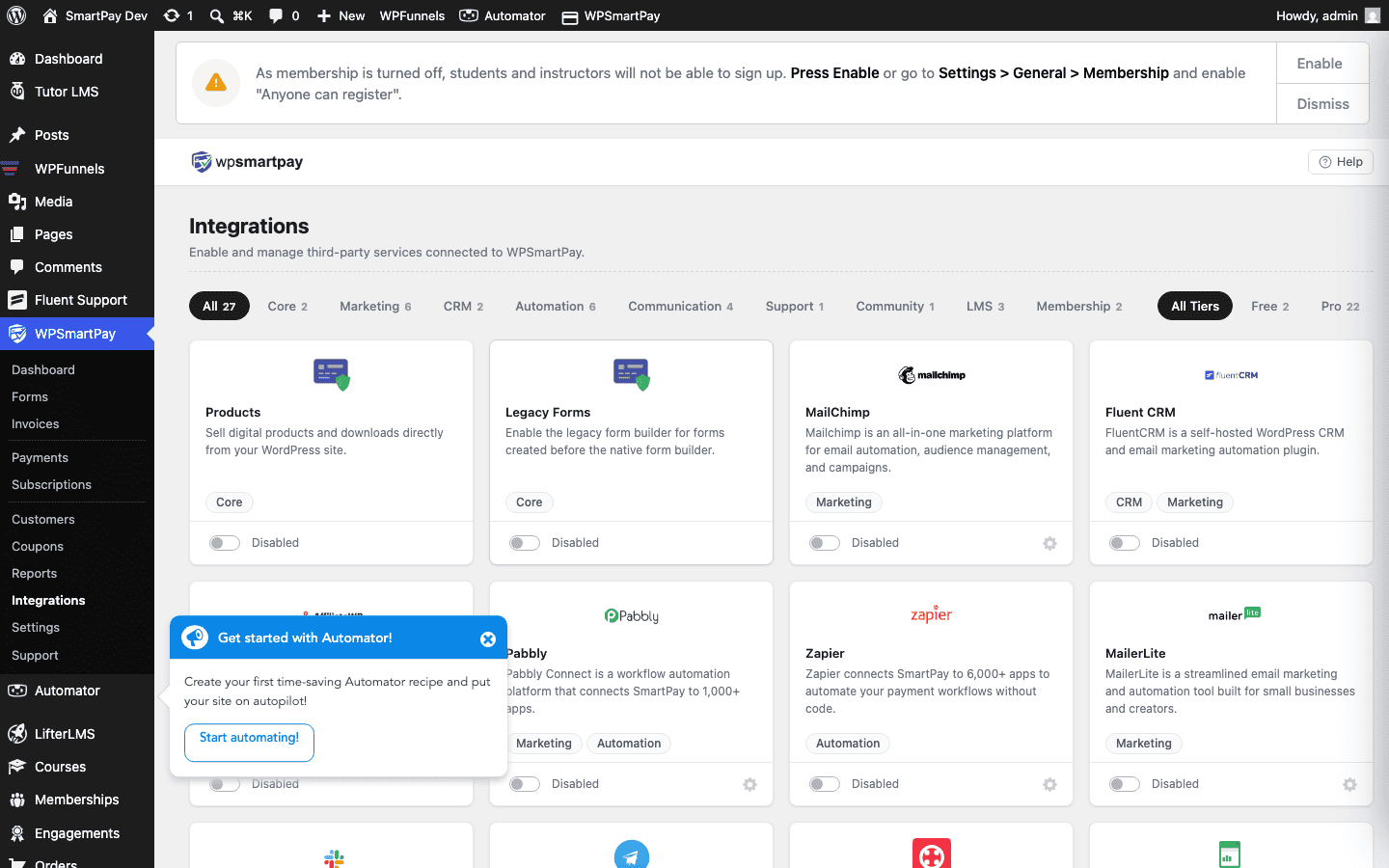
Integration Categories
| Category | Integrations | What They Do |
|---|---|---|
| Email Marketing | Mailchimp, MailerLite, ActiveCampaign, FluentCRM, ConvertKit | Subscribe buyers to lists and sequences |
| Messaging | Slack, Telegram, Twilio | Send payment notifications to channels or SMS |
| Automation | Zapier, Integrately, Pabbly Connect, Uncanny Automator | Trigger workflows in any connected app |
| LMS | LearnDash, LifterLMS, Tutor LMS | Enroll/unenroll students based on payment status |
| Membership | Restrict Content Pro, WishList Member | Grant/revoke membership level based on subscription |
Webhook-Based Integrations
Zapier, Integrately, and Pabbly Connect work via outgoing webhooks. SmartPay sends a JSON payload to your webhook URL every time a payment event fires. This lets you connect SmartPay to 5,000+ apps without native integrations.
To set up a webhook:
- Go to SmartPay → Settings → Webhooks.
- Click Add Endpoint.
- Paste the webhook URL from your automation platform (Zapier, Integrately, etc.).
- Select which events to send (payment.completed, subscription.created, etc.).
- Save. SmartPay will ping the URL each time the selected events fire.
Troubleshooting Integration Issues
- Integration not triggering: Verify the integration is activated (not just installed) and that the API key is correct. Test with a live payment in Test Mode first.
- Wrong list / audience: Open the integration settings and confirm the target audience or sequence is selected.
- Webhook not firing: Check Settings → Webhooks for delivery failures. Most webhook UIs show a retry button.
- Duplicate contacts in Mailchimp: SmartPay uses the email address as the identifier. If a buyer already exists in the list, they are not duplicated — their tags/groups are updated.