
Clicking any payment in the SmartPay list opens its detail page — a full view of everything associated with that transaction: the amount, customer, form metadata, gateway reference, and activity history.
Opening a Payment
Go to SmartPay → Payments, then click the payment ID or customer name to open the detail page.
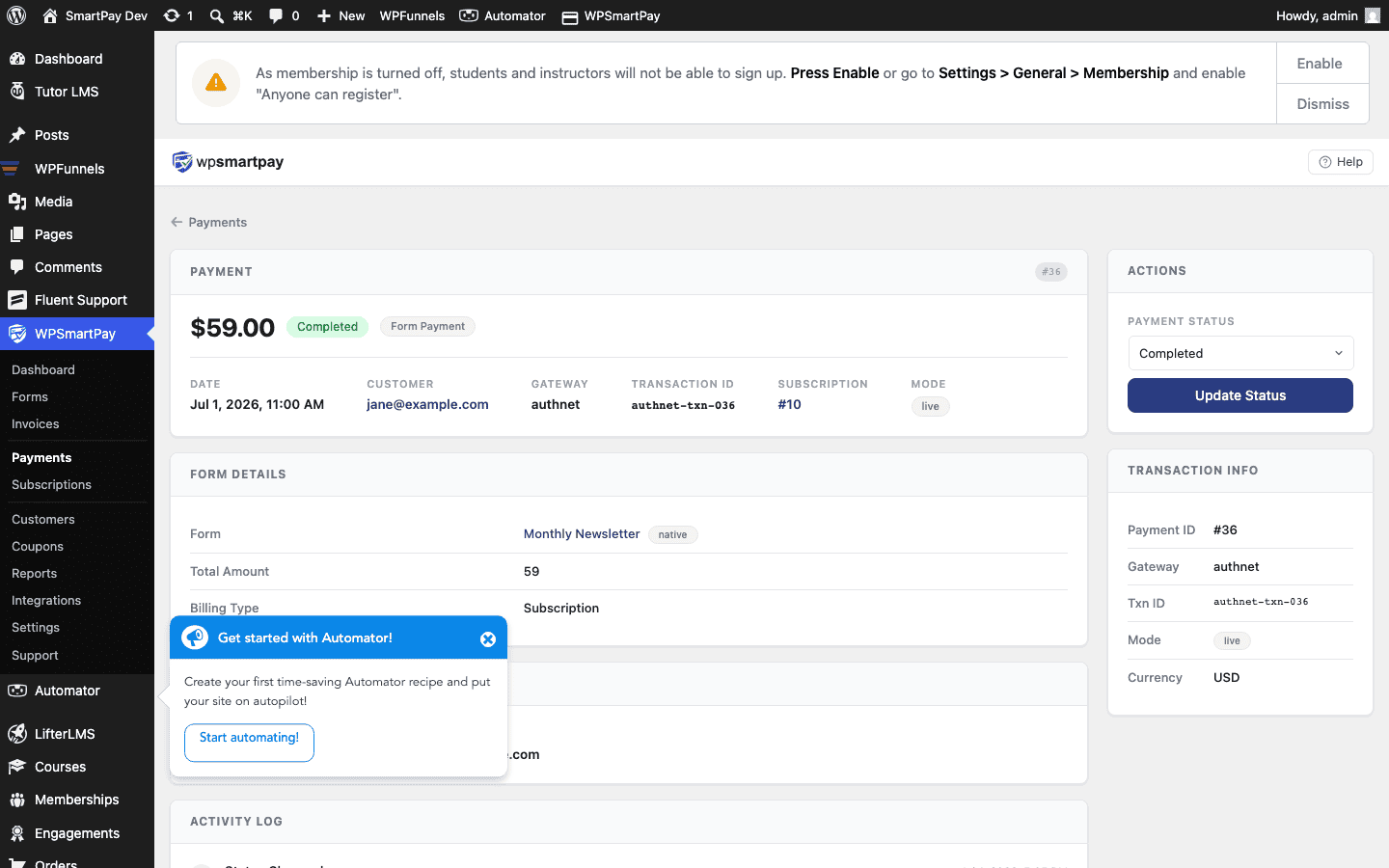
Hero Section
The top of the page displays the most important facts at a glance:
- Amount — Total charged, in the payment currency.
- Status badge — Colour-coded current status (green = Completed, yellow = Pending, red = Failed, etc.).
- Gateway badge — Which payment processor handled the transaction.
- Mode badge — Live or Test.
- Date — When the payment was created.
Customer Info Panel
The customer card shows:
- Name and email address (links to the customer detail page).
- Customer's total lifetime payment count and revenue.
Form / Product Metadata
A panel shows which form or digital product generated the payment, along with the form ID and any custom field values captured at checkout.
Gateway Transaction Details
The gateway panel shows the processor-side transaction ID (e.g., Stripe charge ID ch_… or PayPal transaction ID). Copy this ID when contacting your gateway's support or reconciling payments in your gateway dashboard.
Activity Log
The timeline at the bottom of the page shows every event in this payment's history, newest first:
- Status changes (Pending → Completed, Completed → Refunded).
- Emails sent (receipt, admin notification).
- Webhook events received from the gateway.
- Manual admin actions (notes, status updates).
Available Actions
From the payment detail page you can:
- View Receipt — Opens the public-facing payment receipt page for this transaction.
- Refund — For gateways that support automatic refunds (Stripe, Paddle), initiates the refund immediately. For others, displays instructions for manual refund in the gateway dashboard.
- Add Note — Appends a private admin note to the activity log (not visible to the customer).