
WP SmartPay Pro lets you record payments that were collected outside the normal checkout flow — cash payments, bank transfers, cheques, or any arrangement where the customer paid you directly and you want a record in SmartPay.
When to Use Manual Payments
- Cash or bank transfer payments you receive offline.
- Payments negotiated directly with a customer at an event.
- Migrating historical payment records from another system.
- Creating a record so the associated integrations (invoice, email, LMS enrolment) fire automatically.
Creating a Manual Payment
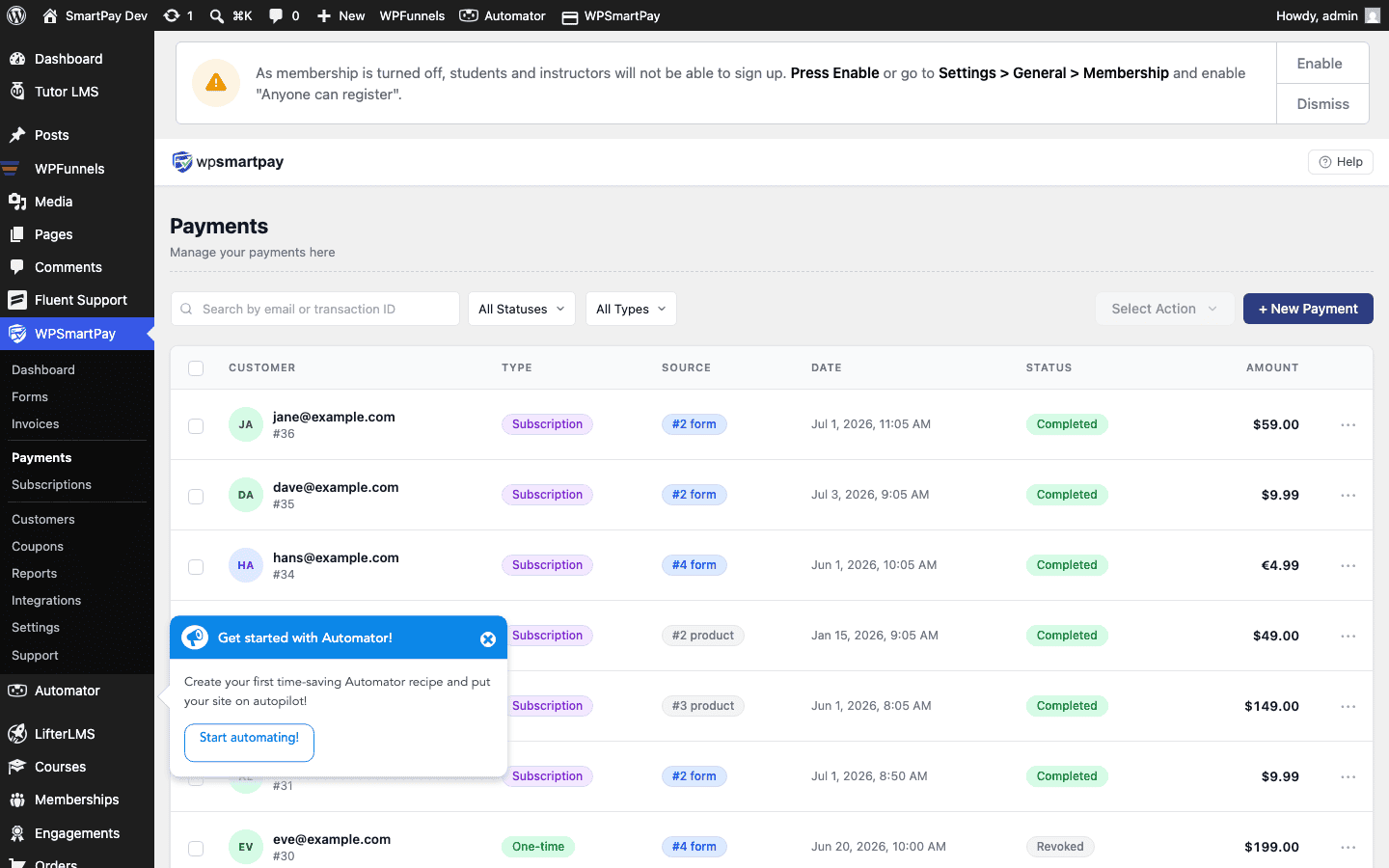
- Go to SmartPay → Payments.
- Click New Payment (top right of the list).
- A panel or modal opens for entering payment details.
Required Fields
- Customer — Search for an existing customer by email or name, or enter a new email to create a customer record on the fly.
- Form — Select the payment form this payment is associated with. The form determines which integrations fire after the payment is saved (enrolment, email, invoice).
- Amount — The total amount received.
- Gateway — Select Manual / Offline (available in all SmartPay installs for exactly this purpose).
- Status — Usually set to Completed immediately since you already received the money.
- Date — When the payment was actually received (can be backdated).
After Saving
Once you click Save Payment:
- The payment appears in the Payments list with status Completed.
- Customer revenue totals are updated.
- If the form has integrations (LMS enrolment, email marketing sync, etc.), those fire just as they would for an online checkout.
- A payment receipt is generated and can be viewed from the payment detail page.
Note: Manual payments use the Manual / Offline gateway internally. No money moves through a payment processor — you are simply creating an administrative record of a payment you have already received.