
The WP SmartPay Pro Subscriptions report gives you a high-level view of your recurring revenue business: how many active subscriptions you have, your Monthly Recurring Revenue estimate, and how subscriptions have trended over the selected period.
Opening the Subscriptions Report
- Go to SmartPay → Reports.
- Click the Subscriptions tab.
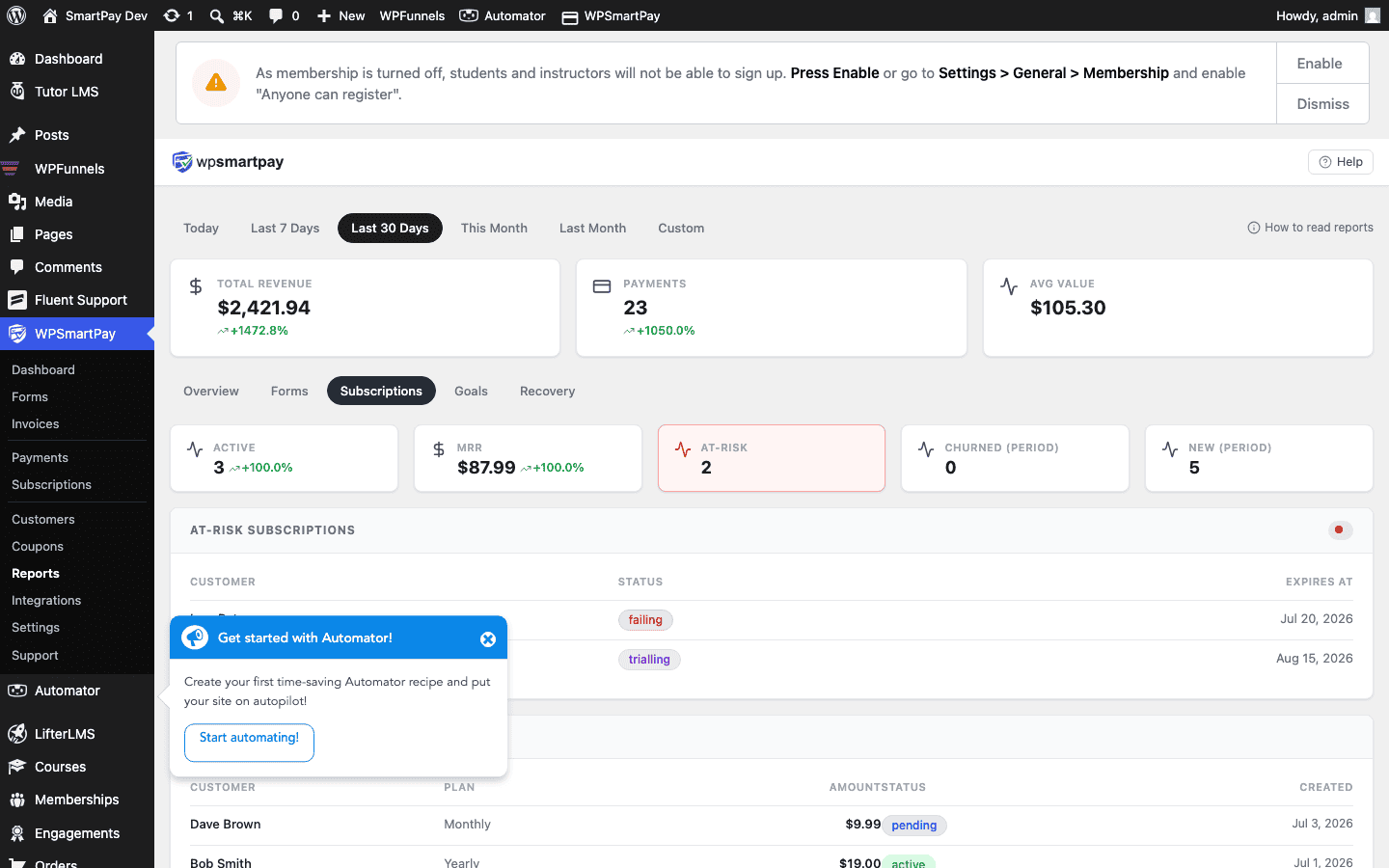
Key Metrics
- Active Subscriptions — Number of subscriptions currently in Active status. This is the count of paying customers on recurring plans at this moment.
- Trialling — Subscriptions in a free trial. These will convert to Active (or cancel) when the trial ends.
- Cancelled — Subscriptions cancelled during the selected period.
- Expired — Subscriptions that completed their maximum billing cycles during the period.
Monthly Recurring Revenue (MRR)
The MRR figure is an estimate calculated from active subscriptions:
- Monthly subscriptions: amount × 1
- Annual subscriptions: amount ÷ 12
- Weekly subscriptions: amount × 4.33 (average weeks per month)
MRR gives you a normalised view of recurring revenue regardless of the billing frequency mix. It is useful for tracking growth month-over-month.
Period Filtering
The date range selector affects subscription metrics differently from the revenue report:
- The Active, Trialling, Cancelled, and Expired counts show subscriptions in that state as of the end of the selected period.
- MRR reflects the subscription mix at the end of the period.
Set the date range to "This Month" to see your current state. Compare month-over-month by switching ranges manually.