





You don’t need an online store to take payments. A consultant collecting deposits, a creator selling one ebook, a nonprofit accepting gifts — all of them need Stripe on a WordPress page, not a shopping cart around it.
This guide shows exactly how to integrate Stripe with WordPress using WP Smart Pay’s Stripe integration — no WooCommerce, no code — and then covers the alternative routes so you can pick the right one for your situation.
Which Method Should You Use?
| Payment form plugin | WooCommerce + Stripe | Form builder + Stripe add-on | |
|---|---|---|---|
| Setup time | ~5 minutes | An afternoon | ~15 minutes if already installed |
| Best for | Services, digital goods, donations | Product catalogs with cart and shipping | One payment field on an existing form |
| Subscriptions | Built in | Needs WooCommerce Subscriptions | Varies by tier |
| Platform fee | None with WP Smart Pay | None | Often, below the top tier |
| Ongoing overhead | One plugin | Store, catalog, checkout, updates | One plugin you already run |
If you’re selling fewer than a dozen distinct things and nobody needs a cart, the first column is almost always right.
Before You Start: Two Prerequisites
- An SSL certificate. Your site must serve over HTTPS — Stripe won’t process payments on an insecure page. Most hosts include free Let’s Encrypt certificates; if your address bar shows a padlock, you’re set.
- A Stripe account. Sign up at stripe.com and complete the business verification. Grab your API keys from the Stripe dashboard under Developers → API keys — you’ll need the publishable key and secret key (both the test and live pairs).
Verification can take anywhere from minutes to a couple of days depending on your country and business type. You can build and test everything with test keys while that’s pending.
Method 1: Stripe Payment Forms With WP Smart Pay
This is the fastest route when you want payment forms rather than a full store.
Step 1: Install the Plugin
In your WordPress dashboard, go to Plugins → Add New, search for “WPSmartPay”, install and activate. (Stripe is a Pro gateway — the free version ships with PayPal Standard, so you’ll connect your Pro license first.)
Step 2: Connect Stripe
Open SmartPay → Settings → Payment Gateways, choose Stripe, and paste your API keys. Start with the test keys — you’ll flip to live keys after a test purchase.
Step 3: Create a Product or Amount
Define what you’re charging for: a fixed price, a set of pricing tiers, or a customer-chosen amount (the donation pattern). Add a subscription schedule here if you’re billing recurring — daily, weekly, monthly, or yearly, with optional trials and setup fees.
Starting from a template is faster than building from scratch for the common cases:

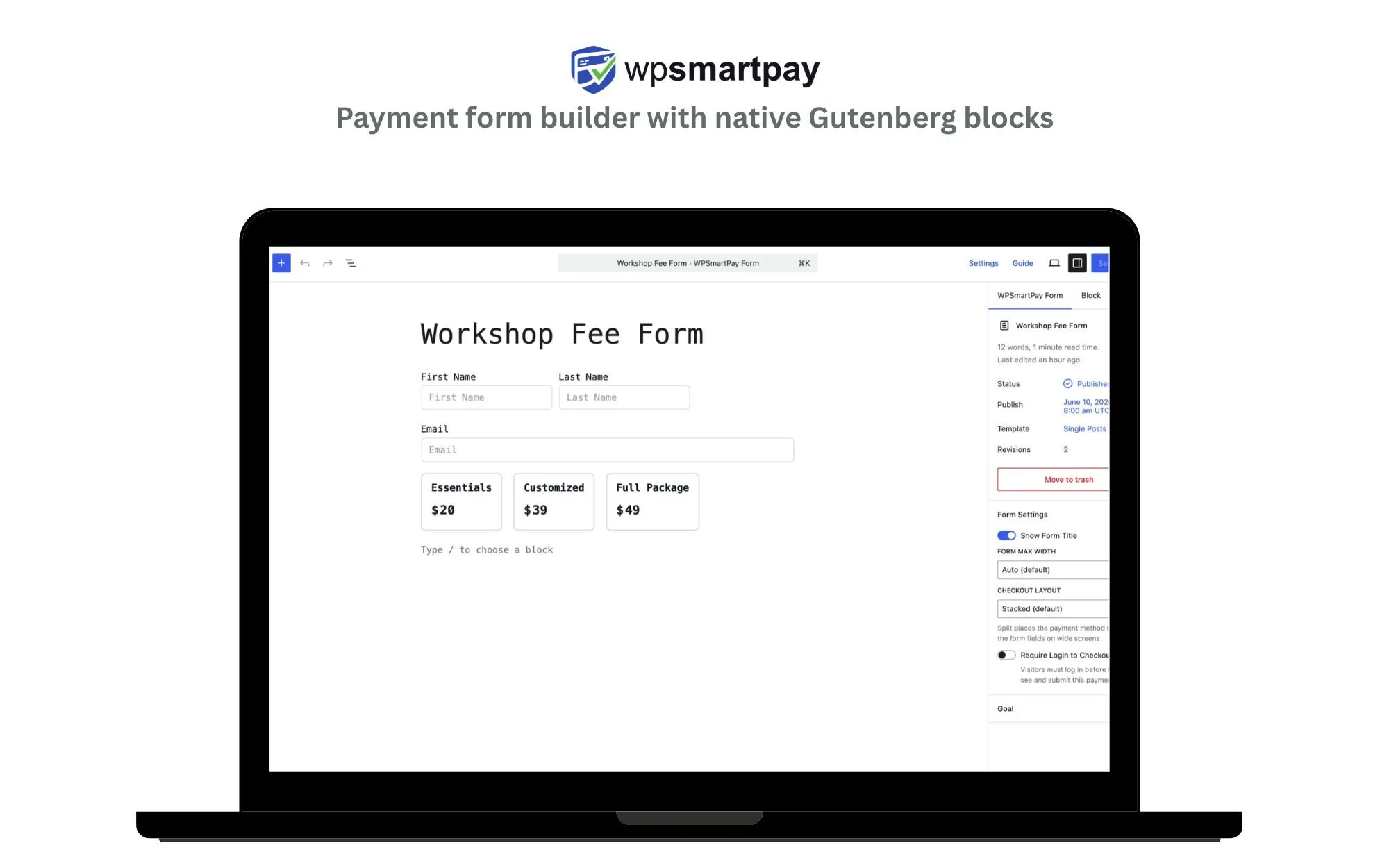
Step 4: Drop the Payment Form on a Page
Edit any page or post, add the SmartPay Gutenberg block, and pick your form. Prefer a popup? Use the shortcode or popup embed instead. The form inherits your theme’s look and works with any page builder that renders blocks.
Step 5: Test, Then Go Live
With test keys active, run a purchase using Stripe’s test card (4242 4242 4242 4242, any future expiry, any CVC). Confirm the payment appears in both the SmartPay dashboard and Stripe’s test dashboard.
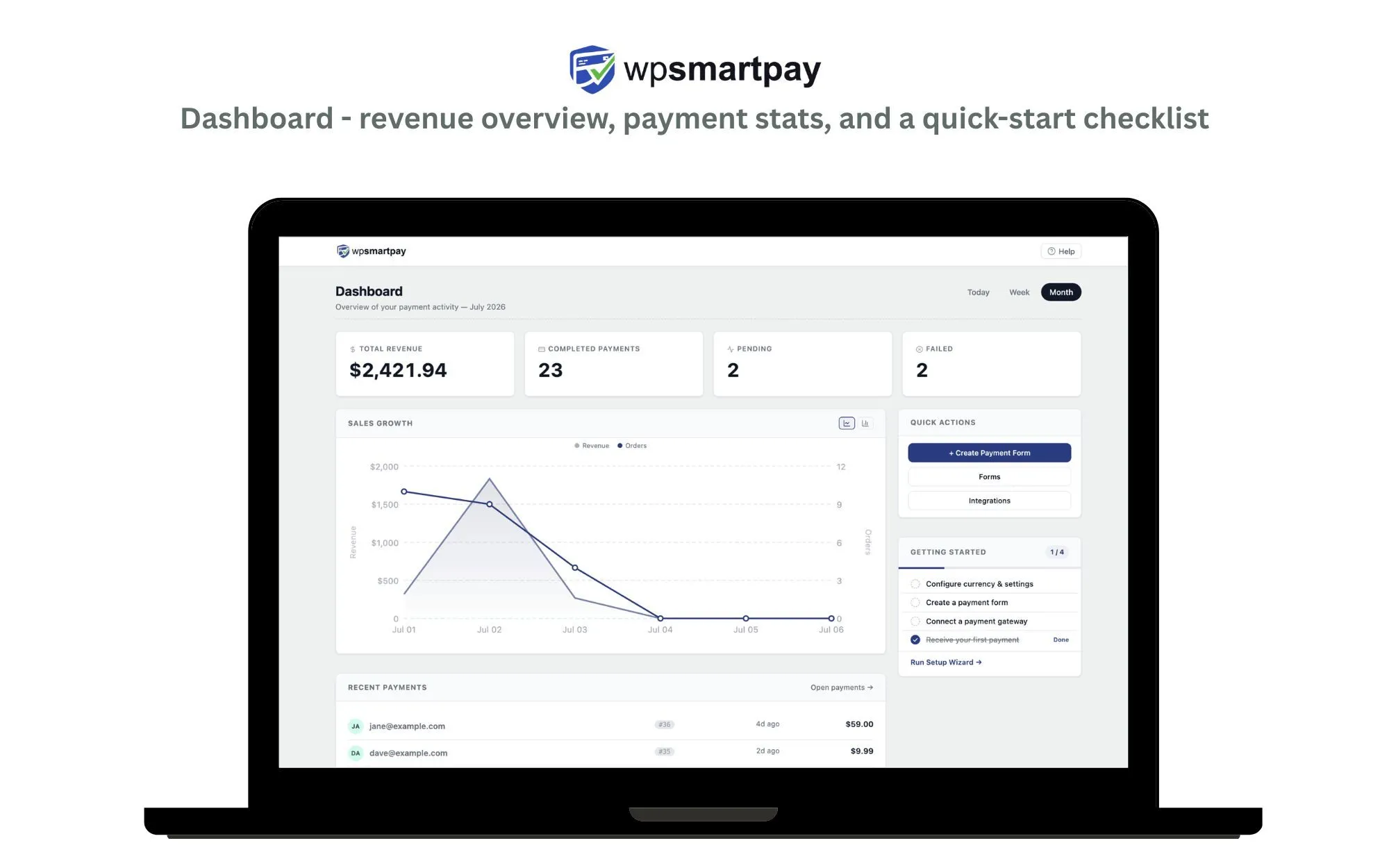
Then swap in your live keys — you’re accepting real payments.
That’s the whole integration: five steps, no template edits, no cart configuration. Customers pay with cards, Apple Pay, or Google Pay through Stripe’s PCI-compliant checkout, and card data never touches your server.
Useful Test Cards
Stripe publishes test cards for every scenario you should check before going live:
| Card number | What it simulates |
|---|---|
4242 4242 4242 4242 | Successful payment |
4000 0000 0000 9995 | Declined — insufficient funds |
4000 0025 0000 3155 | Requires 3D Secure authentication |
4000 0000 0000 0341 | Card attaches, then fails on charge |
Run at least the success case and one decline so you know what your customers see when a payment fails.
Set this up on your own site
Install WP Smart Pay, paste your Stripe keys, and drop a payment form block on any page. No store, no code, no platform fee.
Method 2: WooCommerce + Stripe Gateway
If you’re running an actual store — physical products, cart, shipping — WooCommerce with the official WooCommerce Stripe Payment Gateway is the standard route. It’s more moving parts (store setup, product catalog, checkout flow), which is exactly what you want for a shop and exactly what you don’t for a single payment form.
Pros
- Free, official, and maintained by Stripe
- The broadest payment-method coverage available on WordPress
- Handles carts, shipping, tax, and inventory properly
Cons
- Two plugins and a full store to configure before you can take one payment
- Rated 62% from 235 reviews on wordpress.org (August 2026) — upgrade regressions are a recurring theme in the reviews
- Recurring billing needs the paid WooCommerce Subscriptions extension
Choose this when: you need a multi-product catalog with cart and shipping logic.
Method 3: Form Plugins With Stripe Add-ons
WPForms, Gravity Forms, and Formidable Forms all offer Stripe integrations — usually as paid add-ons or with a per-transaction platform fee on lower tiers.
Pros
- Nothing new to install if you already run one of them
- Excellent conditional logic if the payment depends on earlier answers
- Payment collection sits inside a form you’ve already designed
Cons
- Platform fees on lower tiers stack on top of Stripe’s rate
- Subscription management, refunds, and payment reporting are thin
- No donation campaigns, invoicing, or customer-facing subscription portal
Choose this when: payments are a minor feature of a form you already have — not the point of the page.
What Does Stripe Cost?
Stripe’s standard US pricing is 2.9% + 30¢ per successful card charge (international cards and currency conversion add a bit more). WP Smart Pay adds no platform fee of its own on top.
Watch for plugins that do. A 3% platform fee on top of Stripe’s 2.9% nearly doubles your cost of collection — on $50,000 a year, that’s $1,500 handed to a plugin vendor.
To see exactly what you’d keep on a given sale — and how Stripe compares with PayPal, Mollie, or Paddle for your volume — use our free payment gateway fees calculator.
Troubleshooting the Common Snags
- “Payment form won’t load” — check for HTTPS. Mixed-content pages (HTTPS page, HTTP assets) also break Stripe’s scripts. Open your browser console and look for blocked-resource errors.
- “Test payments work, live ones don’t” — nine times out of ten, live API keys were pasted into the test fields or vice versa. The key prefixes tell you:
pk_test_/sk_test_vspk_live_/sk_live_. - “Apple Pay button missing” — Apple Pay requires domain verification in the Stripe dashboard and only appears in Safari on Apple devices.
- “Payments succeed in Stripe but don’t appear in WordPress” — this is almost always webhooks. Confirm the webhook endpoint is registered in your Stripe dashboard and returning 200; a security plugin or firewall blocking incoming POST requests is the usual culprit.
- “Subscriptions charge once and never again” — same cause. Recurring billing depends entirely on Stripe reaching your webhook endpoint.
- “Card declined in testing” — check you’re using a test card, not a real one, while test keys are active. Real cards are rejected in test mode by design.
Frequently Asked Questions
Can I accept recurring Stripe payments on WordPress? Yes — set a billing cycle on the product and Stripe bills automatically. Customers manage their own subscriptions from a self-serve dashboard.
Can I take donations through Stripe? Yes. Pair Stripe with donation campaigns — goals, suggested amounts, and recurring giving all settle through your Stripe account.
Do I need WooCommerce for Stripe? No. WooCommerce is one way to use Stripe on WordPress, built for stores. For payment forms, donations, and subscriptions without a cart, a dedicated Stripe payment plugin is simpler and faster.
Is it secure? Payments run through Stripe’s PCI DSS Level 1 checkout. With WP Smart Pay, no card number is ever stored on — or even passes through — your WordPress server.
Which countries can use Stripe? Stripe supports businesses in 45+ countries. If yours isn’t on the list, Mollie, Paystack, and Razorpay cover regions Stripe doesn’t — and WP Smart Pay supports all of them behind the same forms.
Can I use Stripe and PayPal together? Yes. Offering both typically lifts conversion, because a meaningful share of buyers will only pay with one or the other. WP Smart Pay runs both on the same form.
How do refunds work? Issue them from the Stripe dashboard or from the WordPress admin — the two stay in sync via webhooks. Stripe’s processing fee is not returned on a refunded payment.
Wrap-Up
For a store, use WooCommerce. For everything else — services, digital products, memberships, donations — install WP Smart Pay, paste your Stripe keys, and drop a payment form block on the page. From empty page to first test payment is genuinely about five minutes.
From empty page to first payment in five minutes
Stripe payment forms, subscriptions, and donations on WordPress — no store required, and nothing skimmed off your sales.